
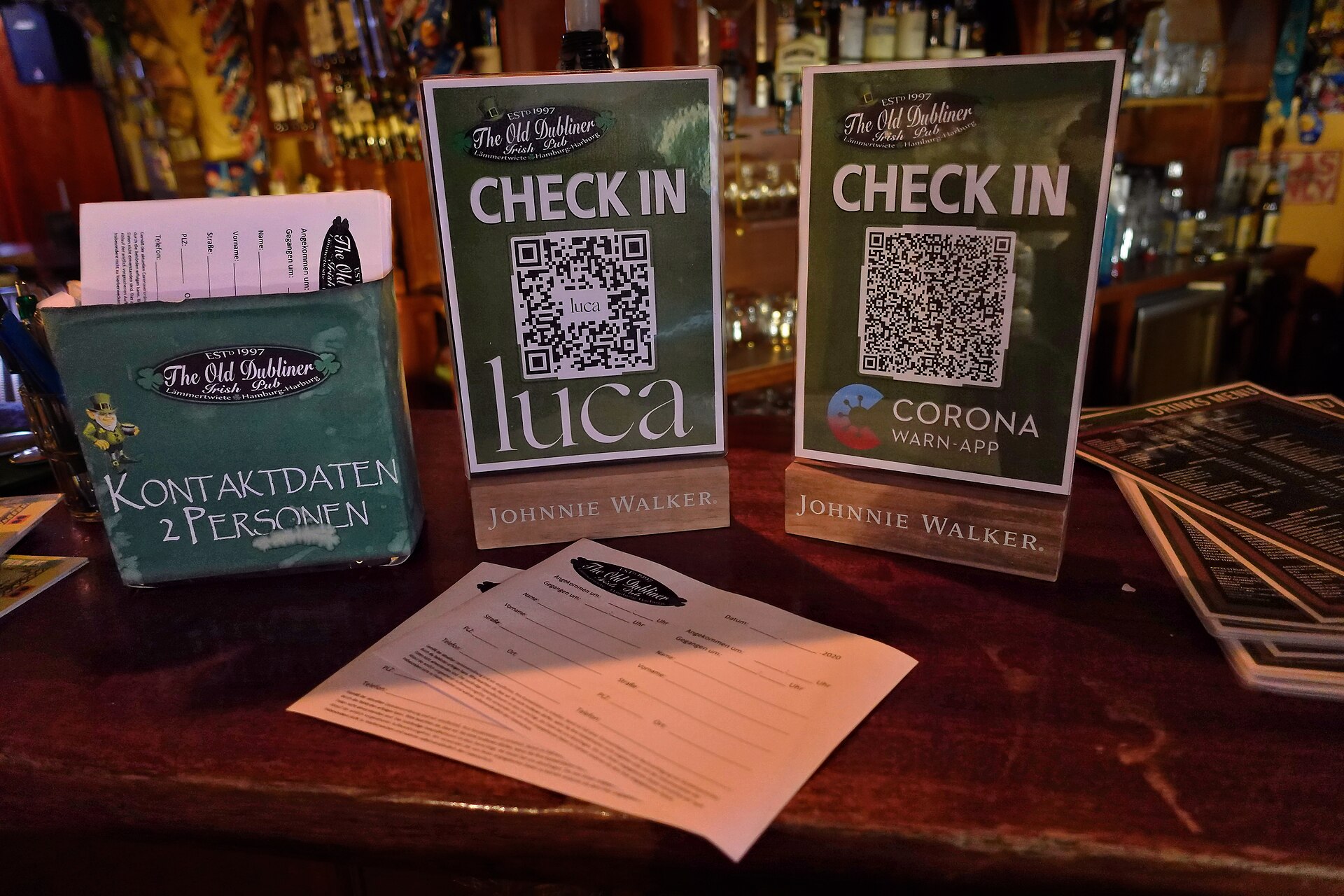
Most in-store customers walk out without ever giving you a way to reach them again. A QR code on the counter lets people join your email list in seconds, on their own phone, without a clipboard or a staff member typing addresses into a spreadsheet.
Table of Contents
This guide covers the whole setup: building a short signup form, generating the code, deciding where to put it, staying on the right side of email rules, and giving customers a reason to scan.
Quick Answer
Create a short signup form in your email platform (Mailchimp, for example, can generate a QR code straight from a signup form), download the QR code, and print it on signage with a clear offer and consent wording. Place it where customers wait or pay, then send a welcome email to confirm the signup.
Step-by-Step: Setting Up Your In-Store Email QR Code
Step 1: Build a mobile-friendly signup form. Use your email platform’s hosted form or landing page. Ask for as little as possible: an email address and, at most, a first name. Every extra field means more typing on a phone while standing at a counter, and shorter forms generally convert better.
Step 2: Add clear consent language. Next to the email field, state what people are signing up for, such as ‘Get our monthly deals and new-arrival news.’ Use an unchecked opt-in box if you want a stronger record of consent. Scanning a code is not consent by itself; the wording and the action on the form are what count.
Step 3: Generate the QR code. Many email platforms, including Mailchimp, let you choose the QR option after creating a signup form, pick a size, and download it. Alternatively, copy the form’s URL into a separate QR generator.
Step 4: Decide between static and dynamic codes. A static code has the URL baked into the pattern, so it can’t be edited and typically has no scan analytics, but it is usually free. A dynamic code points to a redirect link you control, so you can change the destination after printing and see scan counts, but it generally requires a paid subscription. If you might change email tools or forms later, dynamic is the safer choice for printed signage.
Step 5: Test before you print. Scan the code with both an iPhone and an Android phone, on Wi-Fi and on cellular data, and complete a real signup. Confirm the welcome email arrives. Print the code large enough with plenty of blank space around it so it scans easily from a normal distance.
Where to Place the Code and What to Offer
Put the code where customers already pause: at the register, on the checkout counter, in the fitting-room area, on table tents, on receipts or bags, or in the window for people walking by. Add a short call to action right beside it, like ‘Scan for 10% off your next visit’ or ‘Scan to get first word on new arrivals.’ A code with no explanation gets ignored.
Give people a concrete reason to join. A first-purchase discount, a free sample, early access to sales, a loyalty perk, or useful content such as seasonal tips all work. Say what you’ll send and roughly how often. Train staff to point at the sign and mention it aloud at checkout, since a friendly prompt does more than signage alone.
Use a separate code or a tracking tag per location or sign if you want to learn which placement works best. Dynamic QR tools and most email platforms make this easy.
Staying Compliant With Email Rules
In the U.S., the CAN-SPAM Act sets rules for commercial email. According to the FTC’s compliance guide, your emails must have accurate header information and truthful subject lines, identify themselves as ads where applicable, include a valid physical postal address, and give a clear way to opt out. You must honor opt-out requests within 10 business days.
Other regions and states can be stricter. The EU and UK require opt-in consent, and privacy laws such as California’s CCPA add notice requirements about how you collect and use personal information. Link to your privacy policy on the form, and if you serve customers outside the U.S., check local rules or ask a qualified professional.
A welcome email that asks subscribers to confirm (double opt-in) reduces typos and fake signups and gives you a cleaner list, at the cost of a small drop in completed signups.
Tips and Common Mistakes
Don’t send people to a page that isn’t mobile-friendly or that forces a login. Don’t bury the form under a long page or ask for a birthday, phone number, and address on day one. Don’t print a code on glossy, reflective material or a busy background that makes scanning unreliable.
Don’t forget follow-through. Send the welcome email promptly with the promised offer, then keep a steady, useful schedule. Check your scan and signup numbers monthly, and adjust the offer or placement if scans are high but signups are low, which usually means the form needs to be shorter or the promise clearer.
Finally, keep a non-QR option available. Some customers don’t want to scan, so let staff enter an email at checkout with the same clear notice and consent.
Explore more: More Digital Strategy guides for small businesses.
QR code email signup FAQs
Is a QR code legal for collecting customer emails?
Yes. A QR code is just a way to reach your signup form. The legal requirements depend on how you collect consent and how you send email. In the U.S., CAN-SPAM requires a physical address, a clear opt-out, and honoring unsubscribes within 10 business days. Rules in the EU, UK, and some U.S. states can be stricter, so check the ones that apply to you.
Should I use a static or dynamic QR code for my store?
Static codes are usually free but can’t be edited or tracked. Dynamic codes usually require a paid plan but let you change the destination after printing and view scan counts. For printed signs you expect to keep for a while, dynamic is generally safer.
What should my email signup form ask for?
Keep it minimal: an email address and optionally a first name. The fewer fields, the easier it is to complete on a phone at the counter. You can gather more details later through emails or a preference page.
How do I get more people to scan the code?
Put it at the point of sale or where customers wait, add a clear offer next to it, and have staff mention it at checkout. Test different offers and placements and compare signup counts.
Build It With GTStudios
Need help with your website, app, or small-business tech? GTStudios builds web, apps, and software for small businesses. See how GTStudios can help.
Want dev news in your inbox? Subscribe to the free newsletter.
Photo: Hinnerk Rümenapf (Hinnerk R), https://hinnerk.ruemenapf.de / CC BY-SA 4.0, via Wikimedia Commons.