
Users expect apps to work even when their signal drops in a tunnel, on a plane, or in a basement with sketchy Wi-Fi. Building offline-first means designing your Flutter app so that local storage is the source of truth — the network is just a way to keep that truth in sync. When you get this right, users never see a blank screen or a spinning loader because they happen to be offline.
Table of Contents
This guide walks you through the practical steps: adding the right SQLite package for Flutter, modelling your data, handling CRUD operations, detecting connectivity changes, and queuing writes so they sync automatically when the device comes back online. By the end you will have a working offline-first data layer you can drop into any Flutter project.
Quick Answer
Use the sqflite package — a Flutter Favorite SQLite plugin published by Tekartik (tekartik.com) and currently at v2.4.3 — alongside connectivity_plus to detect network state. Write all data locally first, mark unsynced rows with a flag, then push them to your API whenever connectivity is restored.
Step 1 — Add the Right Packages
Flutter does not use expo-sqlite (that package belongs to the React Native / Expo ecosystem and is not available on pub.dev). The correct package for Flutter is sqflite, a Flutter Favorite published by Tekartik with broad platform support for Android, iOS, and macOS. You also need the path package to locate the correct database file on disk, and connectivity_plus (v7.1.1, maintained by fluttercommunity.dev) to listen for network changes. Add them by running: flutter pub add sqflite path connectivity_plus
Then import them where you need them: import ‘package:sqflite/sqflite.dart’; import ‘package:path/path.dart’; import ‘package:connectivity_plus/connectivity_plus.dart’; The connectivity_plus package supports Android, iOS, macOS, Linux, Windows, and Web — its onConnectivityChanged stream is what triggers your sync logic.
Step 2 — Create the Database Helper
Wrap your database in a singleton so only one connection is open at a time. Inside an async openDatabase call, pass the path using join(await getDatabasesPath(), ‘myapp.db’) and supply an onCreate callback that runs your CREATE TABLE statements. Always call WidgetsFlutterBinding.ensureInitialized() before opening the database in main(), otherwise the Flutter engine will not be ready.
Add a synced INTEGER column (0 = pending, 1 = synced) to every table that needs remote persistence. This is the core of your offline queue. For example: CREATE TABLE tasks(id INTEGER PRIMARY KEY AUTOINCREMENT, title TEXT, synced INTEGER DEFAULT 0). Every insert sets synced to 0 by default, so nothing is accidentally skipped if the device is offline at creation time.
Step 3 — CRUD With Offline Safety
All writes go to SQLite immediately — never block the UI waiting for a network response. Use db.insert with ConflictAlgorithm.replace for upserts. For reads, query your local table directly; this makes the UI fast even on slow devices. Always use parameterised queries (whereArgs: [id]) rather than string interpolation to avoid SQL injection vulnerabilities.
For updates and deletes, track the operation type alongside the row. A simple pending_ops table with columns (id, operation TEXT, payload TEXT, created_at INTEGER) lets you replay any write in order once connectivity returns, which matters when the order of remote operations is significant — for example, you should not try to update a record on the server before the create has synced.

Step 4 — Detect Connectivity and Trigger Sync
Subscribe to the connectivity_plus stream at app startup: Connectivity().onConnectivityChanged.listen((results) { if (results.any((r) => r != ConnectivityResult.none)) { syncPending(); } }); This fires every time the device’s network state changes. Note the package’s own documentation warns that a non-none result does not guarantee actual internet access — it means a network interface is active. For critical syncs, make a lightweight HEAD request to your API to confirm reachability before flushing the queue.
Your syncPending() function should query for all rows where synced = 0, POST each to your backend, then UPDATE the local row to synced = 1 on a 200 response. Wrap this in a try/catch so a partial failure does not mark successful rows as failed. If your backend supports batch endpoints, group the inserts into a single request to reduce round trips.
Tips and Common Mistakes
Do not open a new database connection on every read or write — opening sqflite databases is cheap but the async overhead adds up fast. Keep one open instance for the app’s lifetime via a static singleton or a dependency injection pattern like get_it. Close the database only in tests or when the app is truly shutting down.
Avoid storing large blobs (images, PDFs) as SQLite BLOBs. Instead, write the file to the device’s documents directory using path_provider and store only the file path in SQLite. This keeps your database small and queries fast. For conflict resolution when two devices edit the same record offline, the simplest safe default is last-write-wins using an updated_at timestamp — just make sure both sides write UTC timestamps, not local device time.
Test your offline logic by actually disabling the network in the emulator rather than mocking connectivity. Mock tests often pass while real offline flows fail because the mock does not replicate the OS-level timing of network-state notifications. Add an integration test that inserts rows offline, brings the network back, and asserts that all rows reach synced = 1.
Explore more: More App Development guides.
Offline-First Flutter with SQLite FAQs
Is expo_sqlite available for Flutter?
No. expo-sqlite is a package for the React Native / Expo ecosystem and is not published on pub.dev. The Flutter equivalent is sqflite, a Flutter Favorite plugin published by Tekartik (tekartik.com) and the standard community choice for SQLite in Flutter projects.
Which platforms does sqflite support?
sqflite supports Android, iOS, and macOS out of the box. For Linux and Windows desktop support, the companion package sqflite_common_ffi extends coverage to those platforms. Experimental web support is also available via sqflite_common_ffi_web.
How do I handle conflicts when two devices edit the same record offline?
The most practical starting point is last-write-wins: store an updated_at UTC timestamp on each row and let the server accept the write with the latest timestamp. For more complex cases — like collaborative editing — you will need a merge strategy or a CRDT (conflict-free replicated data type) library, but last-write-wins covers the vast majority of mobile offline scenarios.
Build It With GTStudios
Need help shipping your app, game, or small-business tech? GTStudios builds web, apps, and games. See how GTStudios can help.
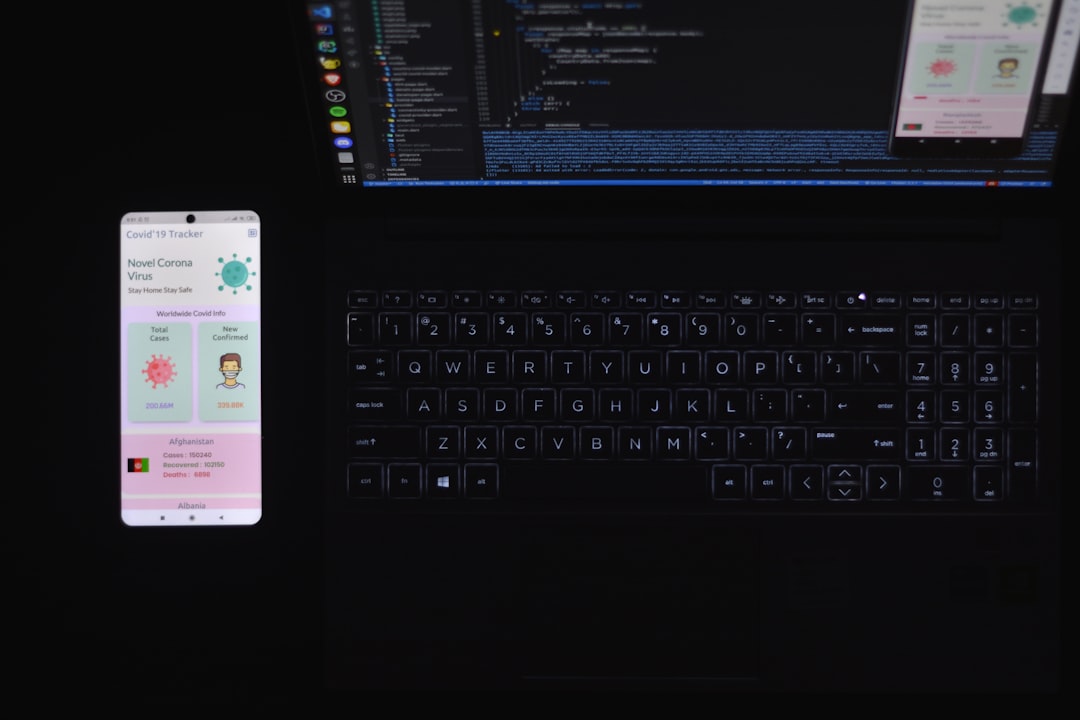
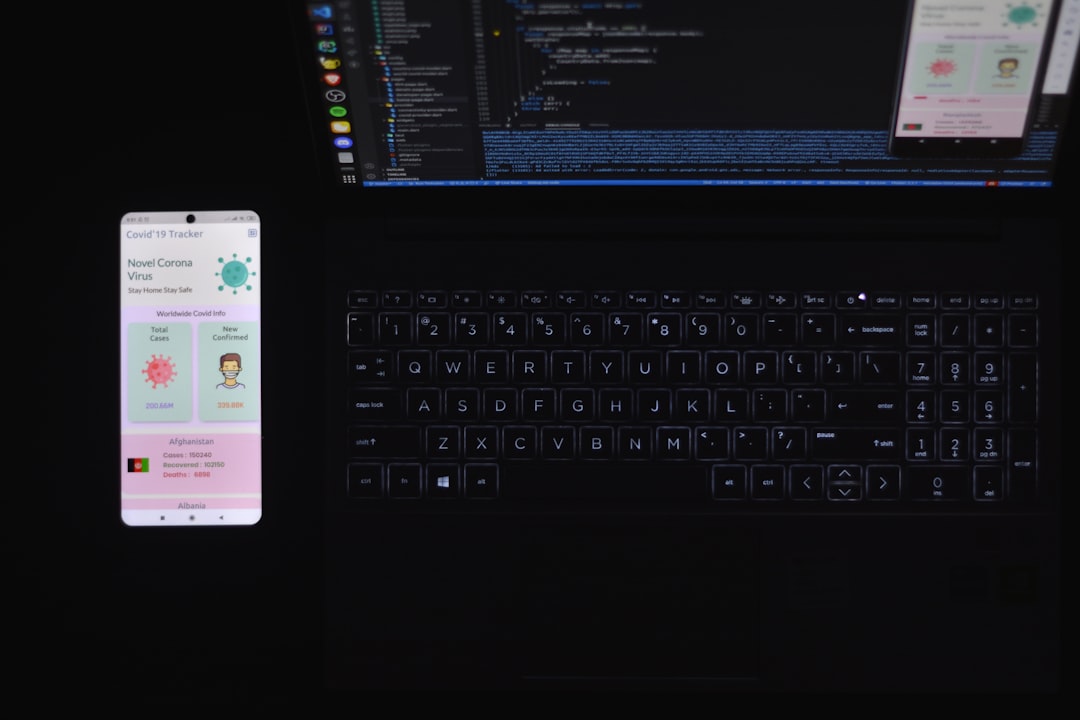
Photo by Fahim Muntashir on Unsplash.