
If you’re spending hours each week copying data between apps, sending the same follow-up emails, or manually updating spreadsheets after every sale, Zapier was built for exactly that problem. It connects over 7,000 apps — Gmail, Google Sheets, Slack, HubSpot, QuickBooks, and hundreds more — and lets them pass information between each other automatically, no code required.
Table of Contents
This guide walks you through setting up your first automation from scratch, explains what Zapier costs for small businesses, and shows you the handful of workflows that tend to save owners the most time right away.
Quick Answer
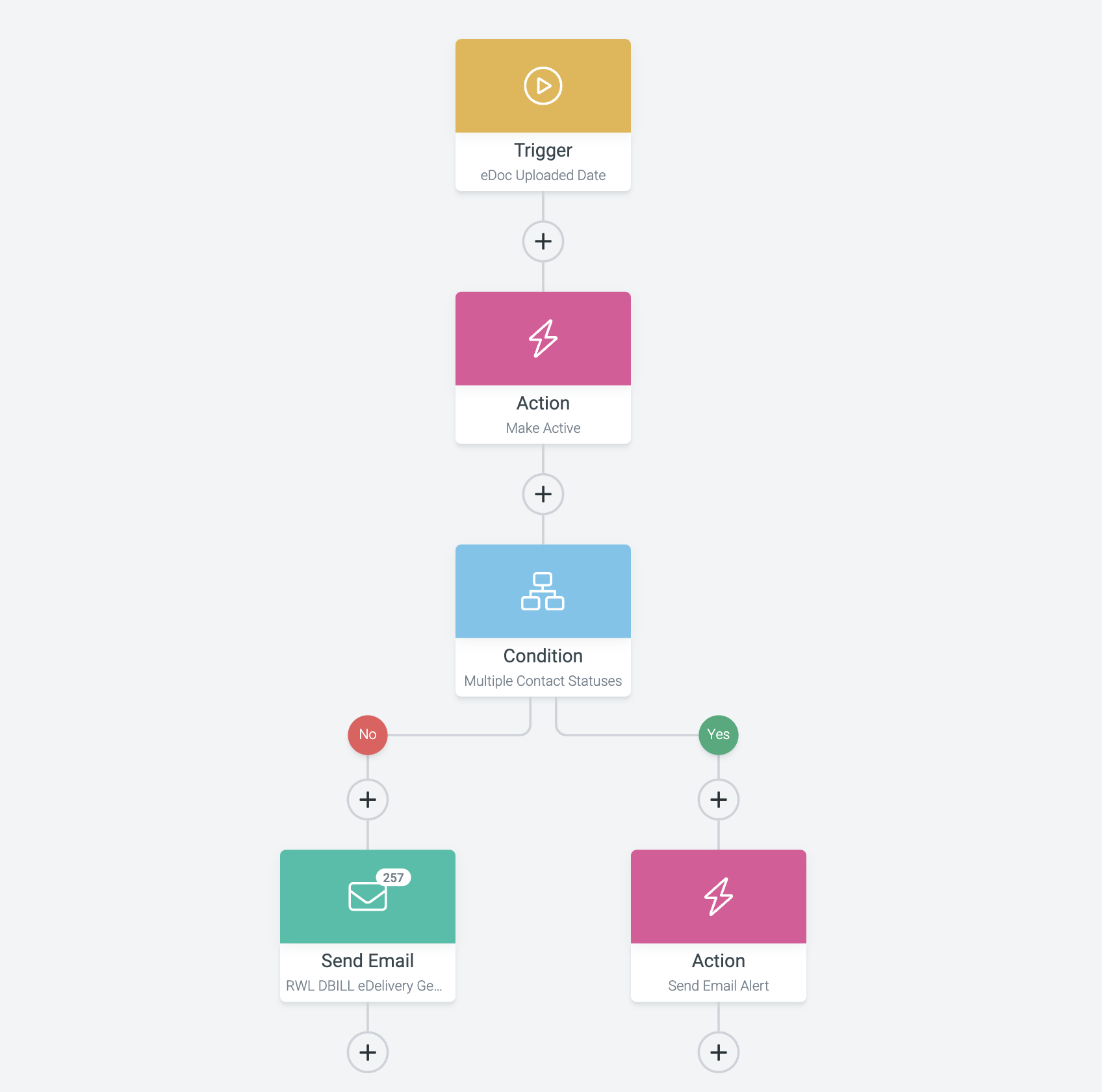
Zapier lets you build automated workflows called Zaps: you pick a trigger (something that happens in one app) and an action (something Zapier does in another app as a result). Once turned on, the workflow runs itself every time the trigger fires — no manual effort needed. The free plan covers 100 tasks per month and is enough to get started.
Step-by-Step: Set Up Your First Zap
Step 1 — Create a free account at zapier.com. The free plan gives you 100 tasks per month and access to two-step Zaps (one trigger, one action), which is plenty for your first few automations. Sign-up takes under two minutes.
Step 2 — Click ‘Create’ then select ‘Zap.’ You’ll land in Zapier’s visual editor, which walks you through building your workflow one piece at a time. Your progress saves automatically as a draft if you need to step away.
Step 3 — Set your trigger. Search for the app where the automation should start — for example, Typeform if you use it for contact forms, or Gmail if you want to react to incoming emails. Select the specific event (such as ‘New submission’ or ‘New email matching search’), then connect your account by logging in when prompted. Click ‘Test trigger’ so Zapier pulls in a real recent record — this lets you see the exact data fields available to use in your action.
Step 4 — Add your action. Click the action step and search for the destination app — for example, Google Sheets to log the form response, or Slack to send your team a notification. Pick the event type (‘Create spreadsheet row,’ ‘Send channel message,’ etc.), connect that account, and map the fields from your trigger data into the right places. Zapier shows you the available data from Step 3 as fill-in variables, so this is mostly point-and-click.
Step 5 — Test and publish. Run a test to confirm the action fires correctly and the data lands where you expect. Once everything looks right, give your Zap a clear name (something like ‘Contact Form → Google Sheet + Slack Alert’) and click ‘Publish.’ The automation is now live and runs on its own whenever the trigger event occurs.
Step 6 — Check your Zap History. Zapier keeps a log of every time your Zap runs, including whether it succeeded or errored. Make it a habit to glance at this after the first few days to catch any mapping issues before they pile up.
Best Starter Zaps for Small Business Owners
Lead capture to CRM: When someone submits a contact form (Typeform, Gravity Forms, or a similar tool), Zapier automatically creates a new contact in your CRM — HubSpot, Zoho, or whichever you use — and sends a Slack or email alert to your sales team. This is one of the most popular first Zaps because it replaces a genuinely tedious manual task.
Email attachments to cloud storage: When a new email with an attachment arrives in Gmail or Outlook, Zapier saves the file directly to a named folder in Google Drive or Dropbox. Useful for invoices, contracts, or client files that tend to get buried in inboxes.
New invoice to accounting: When you create a new invoice in an invoicing tool like FreshBooks or Invoice Ninja, Zapier can automatically log it in a Google Sheet or notify your bookkeeper via email — a simple way to keep your records in sync without double entry.
Social and blog cross-posting: When you publish a new post on your website (via WordPress or a similar CMS), Zapier can automatically share a link to your Facebook Page, LinkedIn, or Buffer queue. One publish, multiple channels.
Starred email to task: When you star an email in Gmail, Zapier creates a task in Trello, Asana, or Todoist. A dead-simple system for turning ‘I need to handle this’ emails into actual tracked to-dos without switching apps.

Zapier Pricing: What Small Businesses Actually Pay
Zapier’s free plan supports 100 tasks per month and limits you to two-step Zaps. That’s a real working tier — not a crippled demo — and most owners can run several basic automations within that limit while they evaluate whether the tool fits their workflow.
The Professional plan (roughly $30/month billed monthly, less on annual billing) unlocks multi-step Zaps, filters, paths, and a much higher task allowance. Most solo operators and very small teams land here once they outgrow the free tier. The Team plan adds shared folders, admin permissions, and multi-user access for businesses where several people manage automations together.
The most important thing to understand about Zapier pricing is that you pay per task, not per Zap. Only action steps count as tasks — trigger steps, filters, and paths do not. So a three-step Zap (one trigger plus two actions) consumes two tasks each time it runs. If that Zap fires 200 times in a month, that’s 400 tasks. Keep that math in mind when estimating your plan needs — it’s easy to underestimate if you have high-volume triggers like every new email.
Tips and Common Mistakes to Avoid
Always test before you publish. Zapier’s test feature is there for a reason — use it every time. An untested Zap that misfires on every form submission can create hundreds of duplicate records or send dozens of rogue Slack messages before you notice.
Name your Zaps descriptively from the start. ‘Zap 1’ is useless when you have fifteen of them. Use a format like ‘[Trigger App] → [Action App]: [What it does]’ so you can find and edit the right one months later.
Watch your task count. Your Zap History dashboard shows you usage in real time. Check it at the start and halfway through each billing period — catching a spike early means you can pause or optimize a Zap rather than hitting your limit or an unexpected overage.
Don’t automate a broken process. If your lead follow-up workflow is inconsistent by hand, automating it just makes the inconsistency happen faster. Map out what the correct process should be before building the Zap — automation accelerates whatever is already there.
Note that polling triggers (the most common type, where Zapier checks an app for new events on a schedule) run every 1 to 15 minutes depending on your plan tier, not instantly. If real-time speed is critical for a workflow, check whether the app offers an instant trigger instead, which fires the moment the event occurs.
Explore more: Small Business Tech guides.
Zapier FAQs
Do I need to know how to code to use Zapier?
No. Zapier’s editor is entirely visual — you search for apps, select events from dropdown menus, and map data fields by clicking. Many small business owners build their first working automation in under 30 minutes with no technical background.
What counts as a ‘task’ in Zapier?
Each action step that successfully completes counts as one task. Trigger steps, filters, and paths do not count. So if your Zap has one trigger and two action steps and fires 50 times, that’s 100 tasks consumed — not 150.
Is the free plan actually useful, or do I need to pay right away?
The free plan is genuinely functional — 100 tasks per month and two-step Zaps cover a handful of real automations. Most owners use it to validate that Zapier solves their problem before upgrading to a paid plan for higher volume or multi-step workflows.
Build It With GTStudios
Need help shipping your app, game, or small-business tech? GTStudios builds web, apps, and games. See how GTStudios can help.
Photo: Zapier / Public domain, via Wikimedia Commons.