
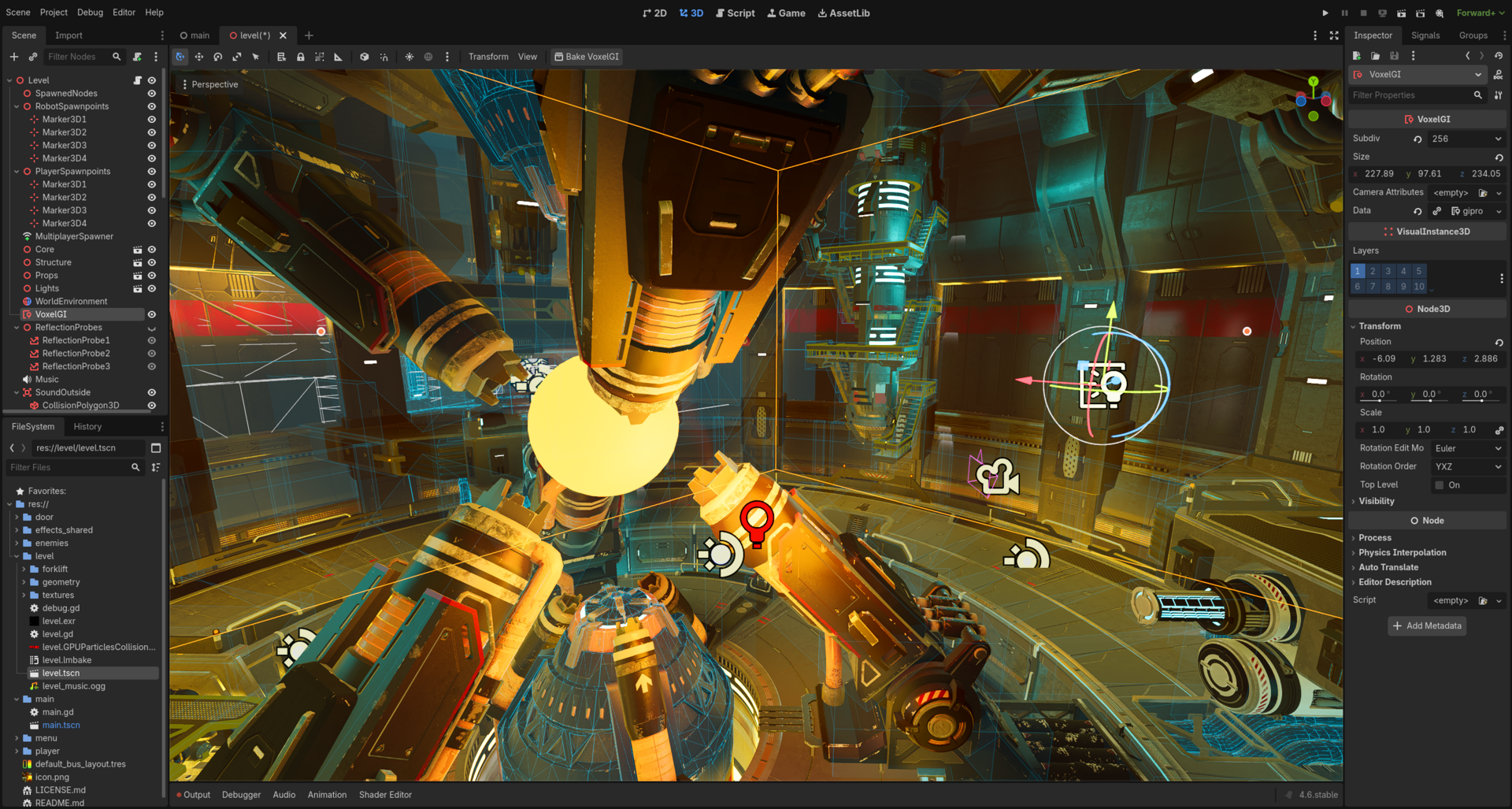
Mobile performance is one of the biggest stumbling blocks for indie developers shipping Godot 4 games on Android and iOS. A project that runs smoothly in the editor can stutter badly on a mid-range phone, drain battery in minutes, or crash on older devices — and the fixes are rarely obvious. The good news is that Godot 4 ships with a solid set of tools to address each of these problems, and the Godot Foundation has been actively closing gaps through versions 4.5 and 4.6, including Vulkan crash rate reductions from roughly 4% down to under 1% across the Android device ecosystem.
Table of Contents
This guide covers the most impactful optimizations you can make right now: picking the right renderer, enabling proper texture compression, cutting draw calls, taming shadows, and profiling on real hardware. Whether you’re building a 2D casual game or a 3D action title, these steps will give you a measurable performance improvement and a smoother path to the app stores.
Quick Answer
For most Godot 4 mobile projects: use the Mobile renderer for high-end devices or the Compatibility renderer for broad support, enable VRAM compression (ETC2/ASTC) in Project Settings, reduce draw calls with MultiMesh and texture atlases, bake lighting for static geometry, and cap your frame rate with Engine.max_fps = 60. Profile on real hardware using Perfetto (Android) or Instruments (iOS) — never rely solely on in-editor metrics.
Step 1: Choose the Right Renderer
Godot 4 offers three renderers, and picking the wrong one is the most common early mistake. Forward+ is designed for desktop only — avoid it entirely for mobile targets. The Mobile renderer uses Vulkan, Direct3D 12, or Metal and is the best choice for games targeting modern mid-range and high-end phones; it supports most advanced features while being optimized for mobile GPU architectures. The Compatibility renderer uses OpenGL ES and is the right pick when you need to reach older or budget devices, or when your game is 2D — it has the lowest performance floor but also the fewest features.
Set your renderer under Project Settings > Rendering > Renderer > Rendering Method. You can override this per export preset, which is useful if you want to use Mobile for newer phones and Compatibility as a fallback. Choose early — switching renderers later requires reworking materials and shaders.
Step 2: Enable VRAM Compression (ETC2 / ASTC)
Uncompressed textures are one of the fastest ways to blow your memory budget on mobile. Godot 4 supports ETC2 compression for Android and ASTC for iOS, and conveniently both formats are enabled through a single project setting: Project Settings > Rendering > Textures > VRAM Compression > Import ETC2 ASTC — turn this on. Once enabled, Godot will reimport your textures in the correct compressed format at export time, cutting VRAM usage by up to 75% compared to raw PNG textures kept on the GPU.
A practical gotcha: after enabling this setting, use the Fix Imports button in the export dialog, or delete the hidden .godot folder and let the editor reimport everything. Failing to reimport means your textures ship uncompressed regardless of what the setting says. For source assets, use PNG or TGA formats — do not import DDS files, as Godot cannot transcode those to mobile-friendly formats automatically.
Step 3: Reduce Draw Calls
Each draw call has CPU overhead, and mobile CPUs are significantly slower than desktop ones at processing many small batches. For 2D games, combine sprites that share a texture into a single TextureAtlas so Godot can batch them into one draw call. For 3D games with many identical objects — trees, rocks, coins — replace individual MeshInstance3D nodes with a MultiMeshInstance3D node; this lets the GPU render thousands of instances in a single call.
For lighting, prefer per-vertex lighting over per-pixel lighting wherever the visual difference is acceptable; it is dramatically cheaper on mobile GPUs. Limit the number of dynamic OmniLight3D and SpotLight3D nodes in any scene — each light that touches a mesh adds a rendering pass. If your scene has mostly static geometry, bake lighting into a LightmapGI instead of leaving all lights dynamic. Reserve dynamic shadows only for the player character and a small number of moving objects; baked shadows on everything else costs nothing at runtime.
For 3D scenes with depth, enable occlusion culling (add OccluderInstance3D nodes to blocking geometry) and set Visibility Ranges (HLOD) on detailed meshes so they swap to lower-detail versions at a distance. These two features together can dramatically cut the number of draw calls per frame in complex scenes, particularly in the Mobile renderer which does not use a depth prepass.
Step 4: Cap Frame Rate and Manage Battery
Running uncapped at the device’s maximum refresh rate burns battery and generates heat, which modern phones address by throttling the CPU and GPU — creating the stutters that feel like a performance bug. Add this one line to your project’s autoload or main scene: Engine.max_fps = 60. For turn-based or puzzle games where motion is infrequent, consider targeting 30 FPS instead, which roughly halves GPU load.
For touch input, calling Input.set_use_accumulated_input(false) reduces input latency by processing each raw touch event instead of merging them per frame — worth doing for any game where tap precision matters. If you implement an adaptive quality system that lowers particle counts or shadow quality when the device heats up or battery drops below a threshold, poll battery status no more often than every 30 seconds to avoid adding overhead to the system you’re trying to lighten.
Step 5: Profile on Real Hardware
The in-editor profiler measures your development machine, not a phone. Always profile on at least two physical devices — one high-end and one budget — before drawing conclusions. Godot 4.5 added native debug symbols for Android, which means crash logs from the Google Play Console now show readable stack traces instead of hex addresses; enable this in the Android export preset under Debug Symbols. Godot 4.6 adds Android device mirroring directly in the editor, so you can see the game running on a connected phone at different screen sizes without leaving your workstation.
For deep system-level profiling, Godot 4.5 and later support Perfetto on Android and Instruments on Apple platforms. These tools show GPU frame times, memory pressure, thermal state, and driver stalls that Godot’s built-in monitor cannot surface. Run a Perfetto trace during your most complex scene and look for GPU time spikes above 16ms (the 60 FPS budget) — those frames are your real targets.
Tips and Common Mistakes
Do not test only in the Godot editor and assume the results will hold on device — they will not, especially for rendering and memory. Do not keep Forward+ as your renderer if you added it during 3D prototyping and forgot to switch. Do not leave autoloads loaded with large textures or audio streams that are only needed in specific scenes; free resources explicitly when leaving a scene with ResourceLoader or queue_free() on the scene tree. Do not ship an APK with both ARMv7 and ARM64 architectures if you are uploading to Google Play — use the Android App Bundle (AAB) format instead, which lets Google serve only the correct architecture to each device and reduces the download size. For iOS, Godot 4.6 now automatically suggests export settings that reduce the risk of builds failing on certain device configurations — accept those suggestions during your first iOS export setup.
Explore more: Game Development guides.
Godot 4 mobile optimization FAQs
Which Godot 4 renderer should I use for mobile games?
Use the Mobile renderer for games targeting modern mid-range or high-end smartphones — it balances features and performance using Vulkan or Metal. Use the Compatibility renderer (OpenGL ES) if you need to support older or budget devices, or if your game is 2D. Never use Forward+ for mobile; it is designed for desktop only.
How do I enable texture compression for Android and iOS in Godot 4?
Go to Project Settings > Rendering > Textures > VRAM Compression and enable Import ETC2 ASTC. This single toggle tells Godot to compress textures with ETC2 for Android and ASTC for iOS at export time. After enabling it, click Fix Imports in the export dialog or delete the .godot folder so all assets are reimported in the compressed format.
Why does my Godot 4 game run fine in the editor but stutter on my phone?
The editor runs on your desktop GPU and CPU, which are much faster than a phone’s. The most common culprits on device are too many draw calls (fix with MultiMesh and texture atlases), dynamic shadows on too many objects (bake lightmaps for statics), missing VRAM compression causing memory pressure, and uncapped frame rate triggering thermal throttling. Profile with Perfetto on Android or Instruments on iOS to find the actual bottleneck.
Build It With GTStudios
Need help shipping your app, game, or small-business tech? GTStudios builds web, apps, and games. See how GTStudios can help.
Photo: Gflare / CC0, via Wikimedia Commons.