
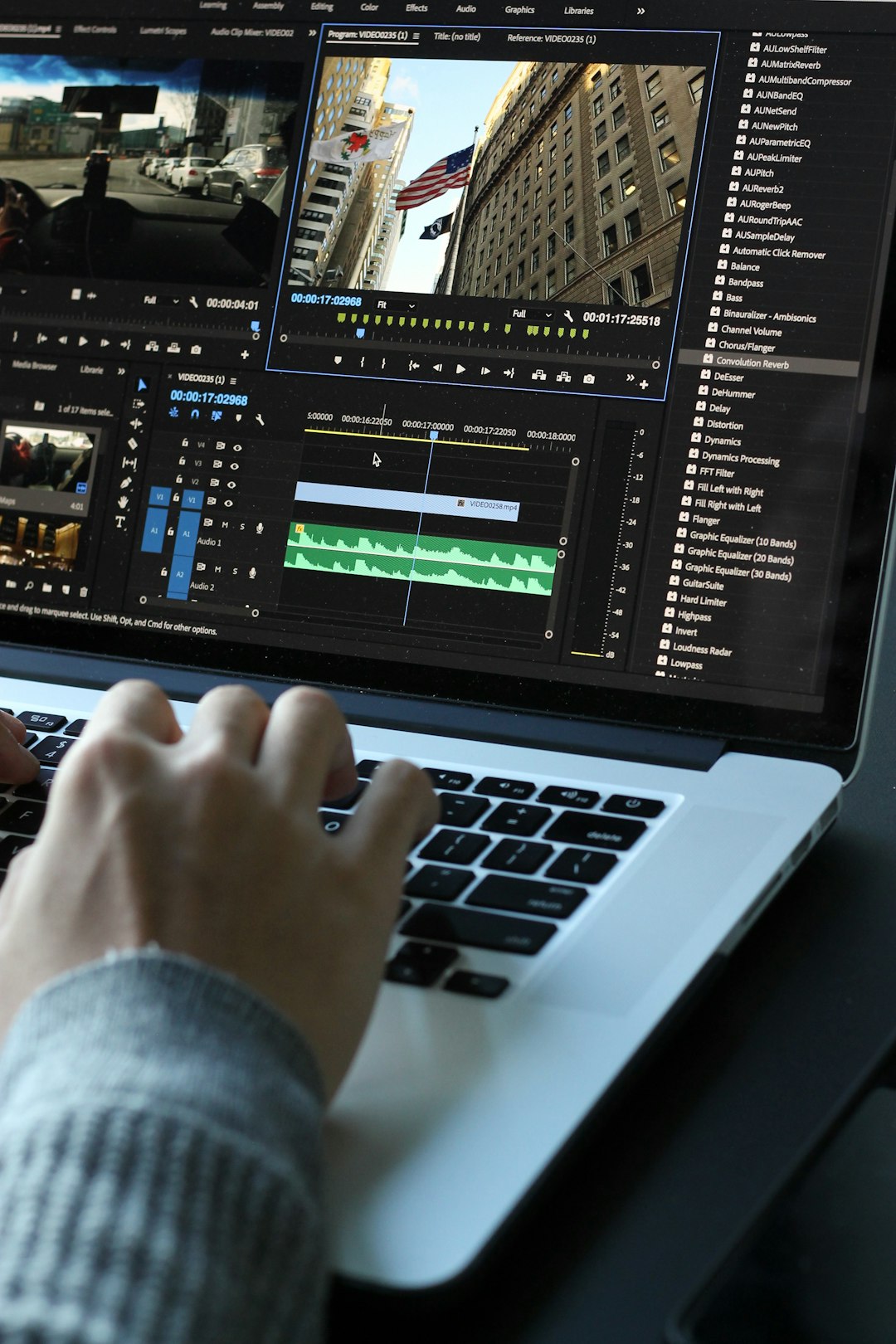
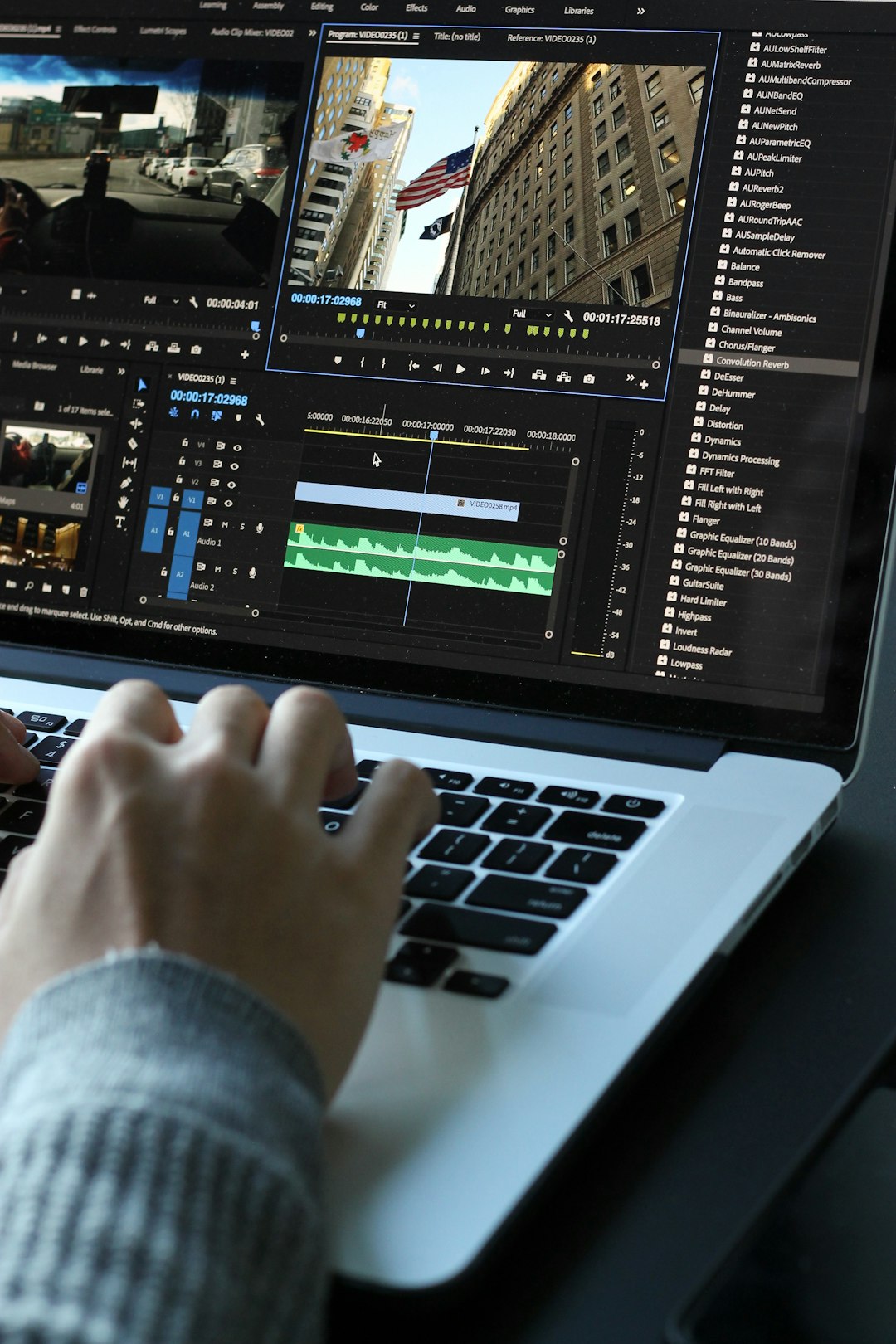
Written SOPs are easy to write and easy to ignore. A screen-recorded walkthrough of the exact process, in the exact tool your team uses, gets watched instead of skimmed — and it saves you from re-explaining the same task every time someone new joins or a role changes hands.
Table of Contents
This guide walks through choosing a recording tool, structuring the library so people can actually find what they need, recording SOPs that don’t go stale, and the maintenance habit that keeps the whole thing useful instead of becoming another abandoned folder of old videos.
Quick Answer
Pick a screen-recording or step-capture tool, record your three most-repeated processes first, organize videos into a folder structure that matches how your team already thinks about work (by department or by workflow), and put a quarterly review on the calendar so SOPs get updated as soon as a process changes.
Choose the Right Tool for How Your Team Works
You don’t need fancy production — you need something that captures a real screen, a real click path, and a real voice explaining why. Three categories of tool cover most small teams. Screen recorders like Loom capture full video with narration, which is best for tasks that need judgment calls explained out loud (“skip this step if the client already paid a deposit”). Step-capture tools like Scribe automatically turn a click-through into an annotated screenshot guide, which works well for straightforward, repeatable software steps that don’t need much verbal context. Tango sits in between, generating visual walkthroughs of browser-based workflows with in-app guidance.
For most small teams, the practical approach is to mix formats rather than pick one tool for everything: use a screenshot-based tool for simple, stable software steps, and record video with narration for anything that involves decisions, exceptions, or a customer-facing tone you want new hires to pick up. Most of these tools offer a free tier, so it’s worth trialing one of each before committing a whole team to paid seats.
Whatever you choose, confirm it can export or embed videos wherever your team already lives — a shared drive, your project management tool, or an internal wiki. An SOP library nobody opens because it lives in a separate app is worse than no library at all.
Structure the Library So People Can Find Things
Decide on one organizing principle and stick to it: either by department (Sales, Onboarding, Support, Billing) or by workflow stage (Lead comes in → Lead gets qualified → Deal closes → Client onboarded). Either works; mixing both without a clear rule is what makes libraries unsearchable within a few months.
Inside each category, use consistent, descriptive video titles — “Refund a Customer in [Your Payment Tool]” beats “Refund process v2.” Add a short text description under each video summarizing what it covers and who it’s for; this makes the library searchable even when someone doesn’t remember the exact title, and it lets new hires scan a list of descriptions instead of opening ten videos to find the right one.
Assign one owner per SOP — usually whoever performs the task most often. That person is responsible for flagging when the video is outdated and re-recording it, which spreads maintenance across the team instead of dumping it all on whoever built the library.

Record SOPs That Don’t Go Stale
Start with your three most frequently repeated processes, not the most complicated ones. Frequency is what saves the most time — a task performed weekly is worth documenting even if it’s simple, because it’s the one you’ll keep re-explaining otherwise.
Keep each recording short and single-purpose: one video per task, not one long video covering five related tasks. Short, focused videos are easier to update individually when only one step in the workflow changes, and easier for a new hire to rewatch without scrubbing through unrelated content.
Narrate the why, not just the what. Anyone can watch clicks happen; what makes a video SOP valuable is hearing the reasoning behind a judgment call, an exception, or a shortcut — the context that usually lives only in one person’s head.
Tips / Common Mistakes
Put a recurring quarterly review on the calendar to check whether each SOP still matches the actual process — software updates, workflow changes, and staff turnover are the main reasons video libraries drift out of date, and a quarterly pass catches most of it before it causes confusion.
Don’t record a video for every possible task on day one. An unfinished, half-covered library that grows steadily is more useful than an attempt to document everything at once that stalls halfway through.
Avoid burying SOPs in a tool separate from daily work. Link directly to the relevant video from the project or task where it’s needed, so people find it in context instead of having to remember a separate library exists.
Don’t rely purely on video with no text at all — a one-line written summary above each embed lets people confirm they’ve got the right video before pressing play, and makes the whole library skimmable and searchable.
Explore more: More small business tech guides.
SOP video library FAQs
How long should an SOP video be?
Keep most SOP videos short and focused on a single task — long enough to cover the steps and the reasoning behind them, short enough that someone can rewatch just the part they need without scrubbing through unrelated content.
Should I use screen recording or screenshot-based tools?
Use video with narration for tasks that involve judgment calls or exceptions, and screenshot-based step guides for simple, stable software steps that don’t need much verbal explanation. Many small teams use both, choosing per task rather than standardizing on one tool.
Who should own maintaining the SOP library?
Assign one owner per individual SOP, usually the person who performs that task most often, rather than making one person responsible for the entire library. Ownership spreads the maintenance load and means outdated videos get flagged by the people who’d actually notice.
How often should SOP videos be updated?
A quarterly review is a reasonable default for most small teams — scheduled time to check whether each process still matches its video, rather than waiting for someone to hit an outdated step and get confused.
Build It With GTStudios
Need help with your website, app, or small-business tech? GTStudios builds web, apps, and software for small businesses. See how GTStudios can help.
Want dev news in your inbox? Subscribe to the free newsletter.
Photo by Matthew Kwong on Unsplash.