
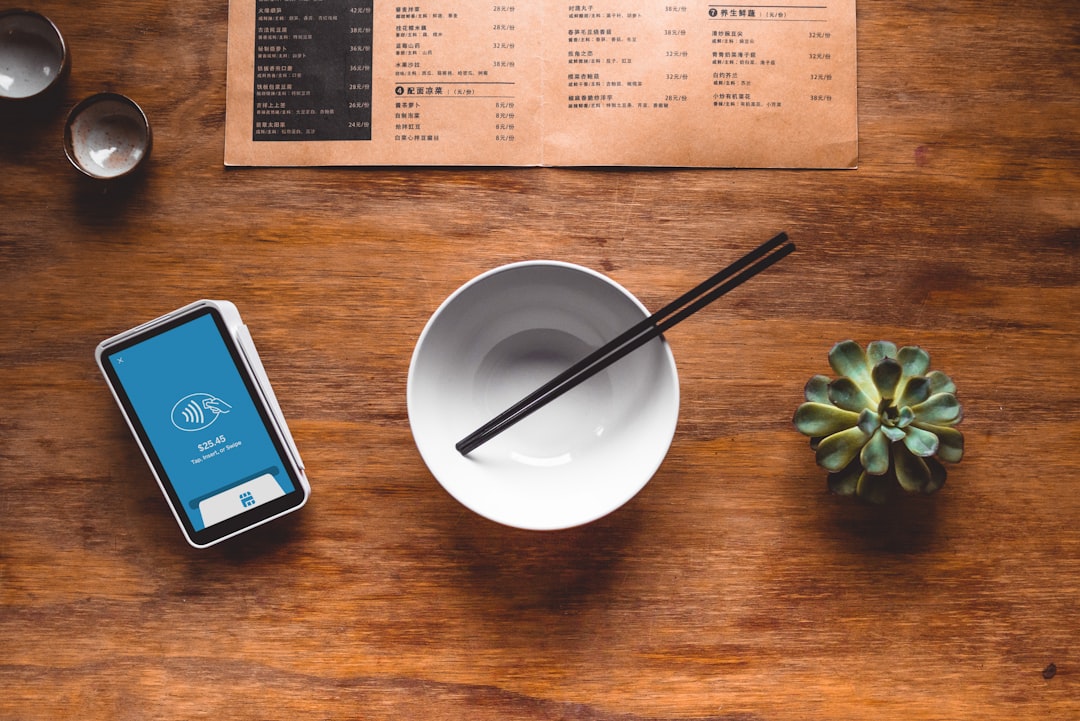
A QR code menu lets guests pull up your full menu on their own phone the moment they sit down, instead of waiting on a server to bring a printed copy. It cuts printing costs, makes it painless to update prices or specials, and gives you a menu that’s easy to keep current across every table.
Table of Contents
Setting one up doesn’t require a developer or a big software budget. This guide walks through hosting your menu, generating the code, and printing it in a way that guests will actually scan and use — plus the mistakes that trip up most restaurants on their first try.
Quick Answer
To set up a QR code menu: put your menu on a webpage (either a dedicated digital menu tool or a PDF hosted on your own site), generate a QR code that links to that page, then print the code on table tents, stickers, or stands sized for easy scanning. Use a dynamic QR code so you can update the menu later without reprinting anything.
Step-by-Step: Building Your QR Code Menu
Start with the menu itself. Organize items into clear sections — appetizers, mains, drinks, desserts — the same way you would on a printed menu. If you already have a digital menu file or website page, you can reuse it. If not, a menu-builder tool (many restaurant QR menu platforms include one) lets you type in items, prices, and photos and get a mobile-friendly page automatically, which usually looks better on a phone screen than a scanned PDF.
Next, get that menu onto a URL. Your options are: a dedicated QR menu platform that hosts a formatted page for you, a PDF uploaded to your restaurant’s own website, or a PDF shared via Google Drive or Dropbox with link sharing turned on. A dedicated menu page is worth the small amount of extra setup time — PDFs are often hard to read and slow to load on mobile, especially over a shaky restaurant Wi-Fi or cell signal.
Choose static or dynamic before you generate anything. A static QR code has the destination URL baked directly into the code — if you ever need to change the link, you have to print a brand-new code. A dynamic QR code points to a short redirect URL that you control, so you can swap out the underlying menu (new prices, a seasonal item, a temporary 86’d dish) without touching the printed code at all. For a restaurant menu, dynamic is almost always the better choice.
Generate the code using a QR code generator or the QR feature built into your menu platform. Select “URL” as the content type, paste in your menu link, and download the code as a high-resolution image (SVG or a large PNG) so it prints cleanly rather than looking pixelated.
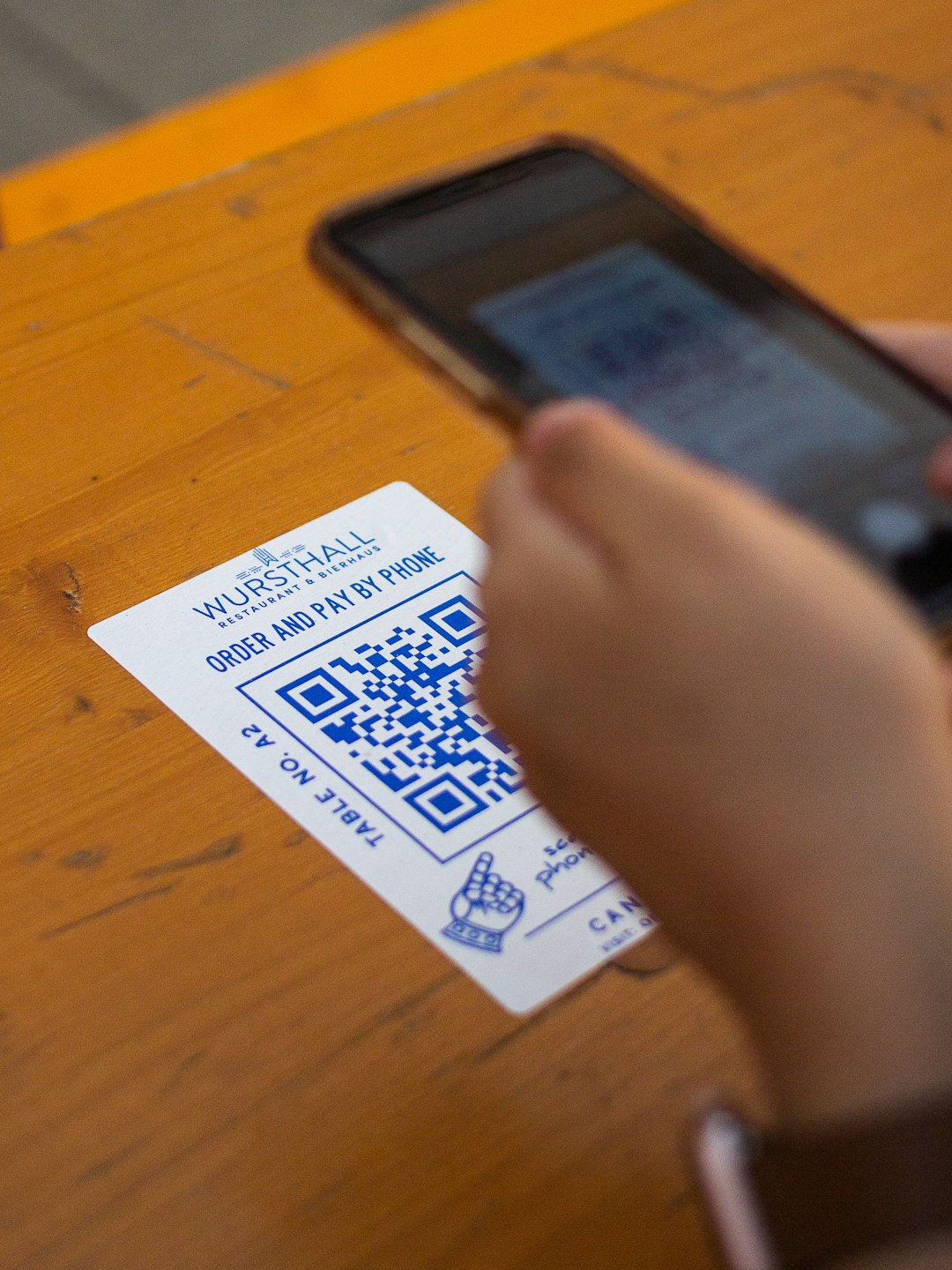
Print and place the codes. Table tents, small acrylic stands, or stickers on the table itself all work — the main requirement is size. Because guests scan while seated, roughly 3–5 cm (1.2–2 inches) square is a safer bet than a tiny code that forces people to lean in. Add a short line of text like “Scan for our menu” so first-time visitors don’t wonder what it is.
Test before you launch. Scan the printed code with a few different phones (iOS and Android, an older phone if you can find one) on both Wi-Fi and cellular data, and check how long the page takes to load. If it’s slow or a phone camera struggles to recognize the code, fix that before it reaches a real table.
Picking the Right Tool for Your Restaurant
Several QR menu platforms are built specifically for restaurants and include a menu builder alongside the QR code itself, so you’re not stitching together a PDF host and a separate QR generator. Most offer a free tier that covers a hosted menu page and an unlimited-scan QR code, with paid plans — typically in the range of $10 to a few dollars a month — adding things like custom branding, analytics on scans, and multi-location support.
If you’d rather keep it simple, you can also host a PDF menu on your existing restaurant website and generate a QR code with any general-purpose QR code tool, several of which are free and let you create a dynamic code without an account. This route is less polished on mobile than a purpose-built menu page, but it’s the fastest way to get something live today.
Whichever route you pick, confirm the code type is dynamic (redirect-based) rather than static before you send anything to the printer — that one setting determines whether future menu changes cost you a reprint or just a quick edit online.
Tips and Common Mistakes
Don’t rely on a QR code as your only menu option. Keep a few printed backups on hand for guests without a smartphone, a dead battery, or spotty service — plus it’s required by law in some jurisdictions to offer a non-digital menu on request.
Avoid linking directly to a raw PDF you never update. It’s the single most common QR menu complaint from diners: a code that opens last year’s menu with prices that no longer match what a server quotes.
Keep the destination page mobile-first. Large tap targets, readable fonts without zooming, and a page that loads in a couple seconds matter far more than fancy design — guests are scanning on a restaurant Wi-Fi network from a seated position, not browsing at a desk.
Brief your staff. Even a great QR setup fails if servers forget to mention it — a quick “you can scan the code on the table for our full menu” when seating guests goes a long way.
Double-check contrast and quiet zone (the blank margin around the code) when you design the table tent — a code crowded by logos or graphics is a common reason scans fail.
Explore more: more small business tech guides.
QR code menu setup FAQs
Do I need a special app to create a QR code menu?
No. Any QR code generator or restaurant menu platform with a built-in QR feature will work — guests scan with their phone’s regular camera app, no app download needed on their end.
What’s the difference between a static and dynamic QR code for a menu?
A static code has the menu link permanently embedded, so changing the menu location means printing a new code. A dynamic code points to a redirect URL you control, letting you update the menu anytime without reprinting.
How big should a QR code menu be printed?
About 3–5 cm (1.2–2 inches) square works well for table tents and stickers, since guests typically scan from a seated position a foot or two away rather than up close.
Is a QR code menu free to set up?
Yes, in most cases. Many QR menu platforms offer a free plan for a hosted menu page and unlimited scans, and general QR code generators are free for a basic dynamic code — paid upgrades mainly add branding and analytics.
Should I still offer a printed menu alongside the QR code?
Yes. Keep printed menus available for guests who prefer them or don’t have a smartphone handy, and check local requirements — some places require a physical menu option on request.
Build It With GTStudios
Need help with your website, app, or small-business tech? GTStudios builds web, apps, and software for small businesses. See how GTStudios can help.
Want dev news in your inbox? Subscribe to the free newsletter.
Photo by Clay Banks on Unsplash.