
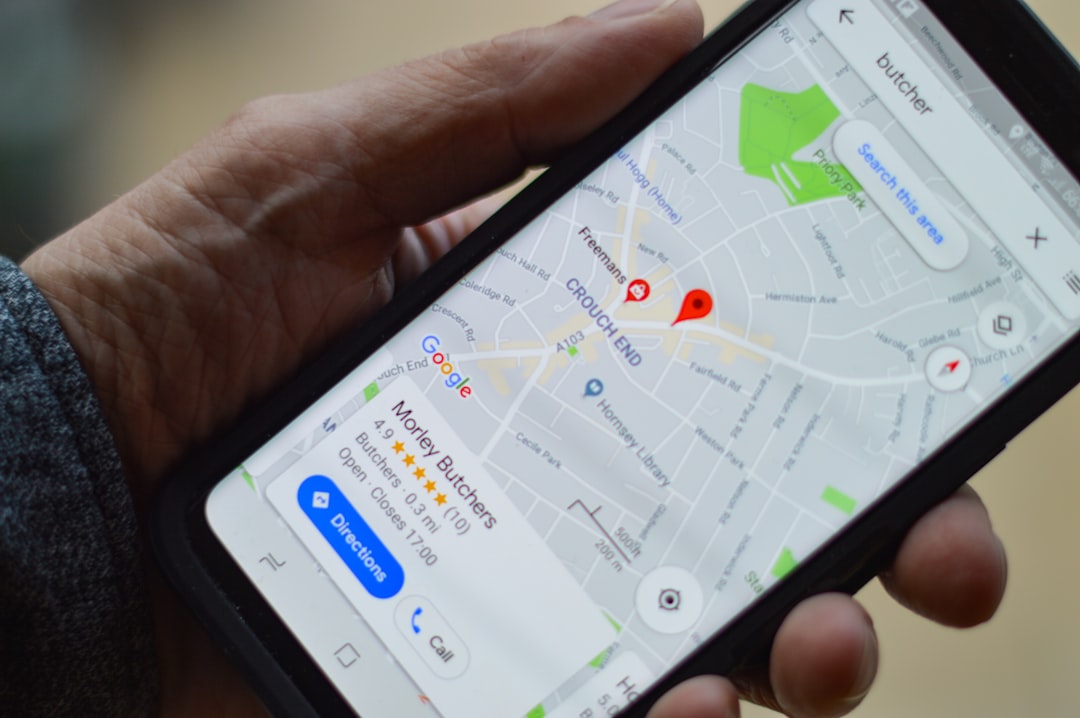
If a search for your business turns up two (or more) listings on Google Maps, you’ve got a duplicate Google Business Profile — and it’s doing real damage. Duplicate business listings split your reviews, confuse customers about which one is real, and can quietly drag down your local search visibility because Google isn’t sure which profile to trust.
Table of Contents
The fix isn’t complicated, but it’s easy to get wrong in a way that puts your real, verified listing at risk. This guide walks through why duplicate Google Business Profiles happen, how to find every copy of yours, which one to keep, and the exact steps to get Google to merge or remove the extra one — without triggering a suspension, losing your reviews, or waiting around with no idea how long it’ll take.
Quick Answer
Google handles duplicate Google Business Profile reports and merge requests through Google Maps, not the Help Center. Open the duplicate listing in Google Maps, tap “Suggest an edit,” choose “Place closed or not here” (sometimes shown as “Close or remove”), then select “Duplicate of another place” and pick the listing it duplicates. Google reviews the suggestion and merges or closes the extra profile if it agrees — never delete your real listing first.
Why Duplicate Google Business Profiles Happen
Duplicate business listings almost always come from the same handful of causes. Someone at your company (or an agency, or even a well-meaning customer) creates a new profile instead of claiming the existing one, often because they couldn’t find it or didn’t know it already existed. Moving to a new address and starting a fresh listing instead of updating the old one is another common trigger — Google frequently keeps the old location live as a second, outdated profile.
Inconsistent name, address, and phone number (NAP) data across your website, directories, and social profiles is the other big cause: when Google’s automated systems see slightly different details for what looks like the same business, they sometimes generate a second profile rather than matching it to your existing one. Franchises and multi-location businesses are especially prone to this, since a corporate-level listing can end up overlapping with an individual location’s profile.
Step-by-Step: How to Find and Fix the Duplicate
Start by confirming the duplicate is real. Search your business name on Google and in Google Maps, and also search your exact phone number and street address — duplicates often hide under a slightly different name or an old address and won’t always show up under a plain name search.
Next, decide which listing is your “real” one. Keep the profile that’s verified, has your current NAP details, the most reviews, and active ownership access in your Google Business Profile account. This is the one you’ll keep; the other is the one you’ll report.
Whether or not you own the duplicate, report it the same way: open it in the Google Maps app or on Google Maps in a browser, click “Suggest an edit” at the bottom of the listing, choose “Place closed or not here” (sometimes labeled “Close or remove”), and select “Duplicate of another place.” Google will typically prompt you to pick the correct listing it’s a duplicate of from a suggestions list — choose your real, surviving profile. This single Maps-based report is what triggers both duplicate closures and full merges; Google doesn’t offer a separate merge request form.
If you created the duplicate yourself and still have access to it, you can also remove it directly from your Google Business Profile account rather than waiting on a Maps suggestion to be reviewed — this won’t affect your real, verified listing.
Managing Duplicates If You Run Multiple Locations
If you manage several locations — as a franchise, a multi-location business, or an agency handling listings for clients — duplicates are more likely to pile up unnoticed, especially after bulk location uploads. Check your Business Profile account’s location list for anything flagged with a duplicate status; Google marks a listing this way when it was added on top of a location that’s already verified elsewhere in your account, and those flagged copies don’t show on Maps, so removing them is low-risk since the live, verified listing is untouched.
For duplicates that belong to someone else’s account, or that you don’t have access to, the Maps-based “Suggest an edit” report is still the right path — it works the same way whether you’re resolving your own portfolio or flagging a stray listing created by a franchisee or a past employee.
Merging vs. Reporting: What Actually Happens to Your Reviews
Google will only merge two listings if they represent the same real-world business: matching business name, matching address, and broadly consistent details like category and phone number. Listings for genuinely separate businesses at the same address (say, two different practitioners sharing a building) are supposed to stay separate as long as each has distinct signage and contact details.
When a merge goes through, Google’s own guidance confirms reviews from the removed listing are combined into the surviving profile — though replies you’d posted to those reviews may not carry over. Photos aren’t guaranteed to survive the process either, so it’s worth saving copies of anything important beforehand.
If your real listing gets incorrectly flagged or merged as a duplicate of someone else’s business, you can appeal directly through Google Business Profile support and request that the two be separated again. There’s no self-serve “merge” button inside Business Profile Manager — the Google Maps suggestion is the actual mechanism Google uses to detect and act on duplicates, whether you’re the owner of both listings or just a customer noticing the problem.
How Long Does It Take Google to Remove or Merge a Duplicate Listing?
There’s no fixed timeline, but business owners discussing their own cases in the Google Business Profile Help Community commonly report results anywhere from a few days to a couple of weeks after submitting a Maps duplicate report, depending on how straightforward the match is. Listings with identical NAP details and categories tend to resolve faster than ones with mismatched information, since Google’s review process has less to reconcile.
Avoid making major edits to your real listing while a report is pending — heavy activity on a profile under review can slow things down or draw extra scrutiny. If a few weeks pass with no change, escalate through the Google Business Profile Help Center by describing the issue and linking both listings; following up in the Help Community forum with your listing details can also help if a report seems stuck.
Tips and Common Mistakes
Don’t delete a listing yourself before confirming which one Google considers the primary record — deleting the wrong one can wipe out reviews and history you actually wanted to keep.
Don’t create a brand-new profile after moving locations or adding a service; update your existing verified listing’s address or services instead. New profiles for the same business are exactly how duplicate business listings get created in the first place.
Keep your business name, address, and phone number identical across your website, other directories, and your Google listing — inconsistent NAP data is one of the most common triggers for Google auto-generating a second listing for your business.
If you manage multiple locations, do a periodic sweep of your account’s location list for anything flagged as a duplicate rather than waiting for a customer to notice two pins on the map.
Photos
Frequently Asked Questions
Can I merge two Google Business Profiles myself without contacting support?
There’s no direct merge button for most listings. You trigger it by reporting the extra listing as a duplicate through Google Maps — “Suggest an edit” > “Place closed or not here” > “Duplicate of another place” — and Google merges or closes it if the suggestion is approved. If you created the duplicate yourself, you can remove it directly from your account without going through that review.
Will I lose my reviews if my duplicate listing gets merged or removed?
If Google merges the two listings, reviews from the closed profile move over to the surviving one. Replies you posted to those reviews, and any photos, aren’t guaranteed to transfer, so save copies of anything important first. If the duplicate is simply removed rather than merged (for example, because you created it by mistake), its reviews don’t carry over.
How long does it take Google to fix a duplicate listing?
Most cases reported in the Google Business Profile Help Community resolve within a few days to a couple of weeks after the Maps report is submitted, though there’s no guaranteed timeline. Clean, matching NAP details across both listings tend to speed things up; if it stalls for several weeks, escalate through the Google Business Profile Help Center.
What if Google marks my real, legitimate listing as a duplicate?
This can happen if another profile for the same business looks more established, or if your details don’t match closely enough with what Google expects. Appeal through Google Business Profile support, explain which listing is the real one, and ask for the two to be separated rather than left merged.
What’s the difference between a duplicate listing and two legitimate separate listings?
Google only merges profiles that represent the same real-world business — matching name, address, and largely consistent category and phone details. Two different businesses that happen to share a building or address (like separate practitioners) are meant to stay as distinct listings as long as each has its own signage and contact information.
Build It With GTStudios
Need help with your website, app, or small-business tech? GTStudios builds web, apps, and software for small businesses. See how GTStudios can help.
Want dev news in your inbox? Subscribe to the free newsletter.