

If a line forms outside your salon, restaurant, clinic, or shop, the fastest fix isn’t asking customers to download yet another app. It’s giving them a link, a QR code, or a text number they can use in seconds—then managing the list yourself from a browser or phone.
Table of Contents
This guide walks through two ways to build a no-app waitlist: using a dedicated web-based waitlist tool (fastest to set up, has SMS built in), or a free DIY version with Google Forms and Sheets. Either way, customers never touch an app store.
Quick Answer
You can run a customer waitlist without an app by using a browser-based tool like Waitwhile or Waitlist Me, where customers join by scanning a QR code or tapping a link and get texted when it’s their turn. NextMe offers the same self-service QR check-in, but only starting on its paid Starter plan—its free plan is staff-managed, so customers don’t check themselves in until you upgrade. For a free, no-signup option, a Google Form connected to a Google Sheet plus a group-texting tool works too.
Option 1: Use a Web-Based Waitlist Tool (Fastest Setup)
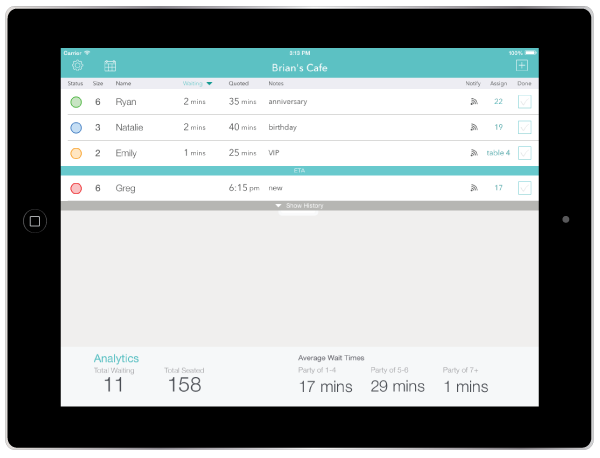
Web-based waitlist platforms are built specifically so customers never install anything—they scan a QR code or click a link on their own phone’s browser, which opens a simple check-in form. You, meanwhile, manage the queue from a dashboard on your own phone, tablet, or computer.
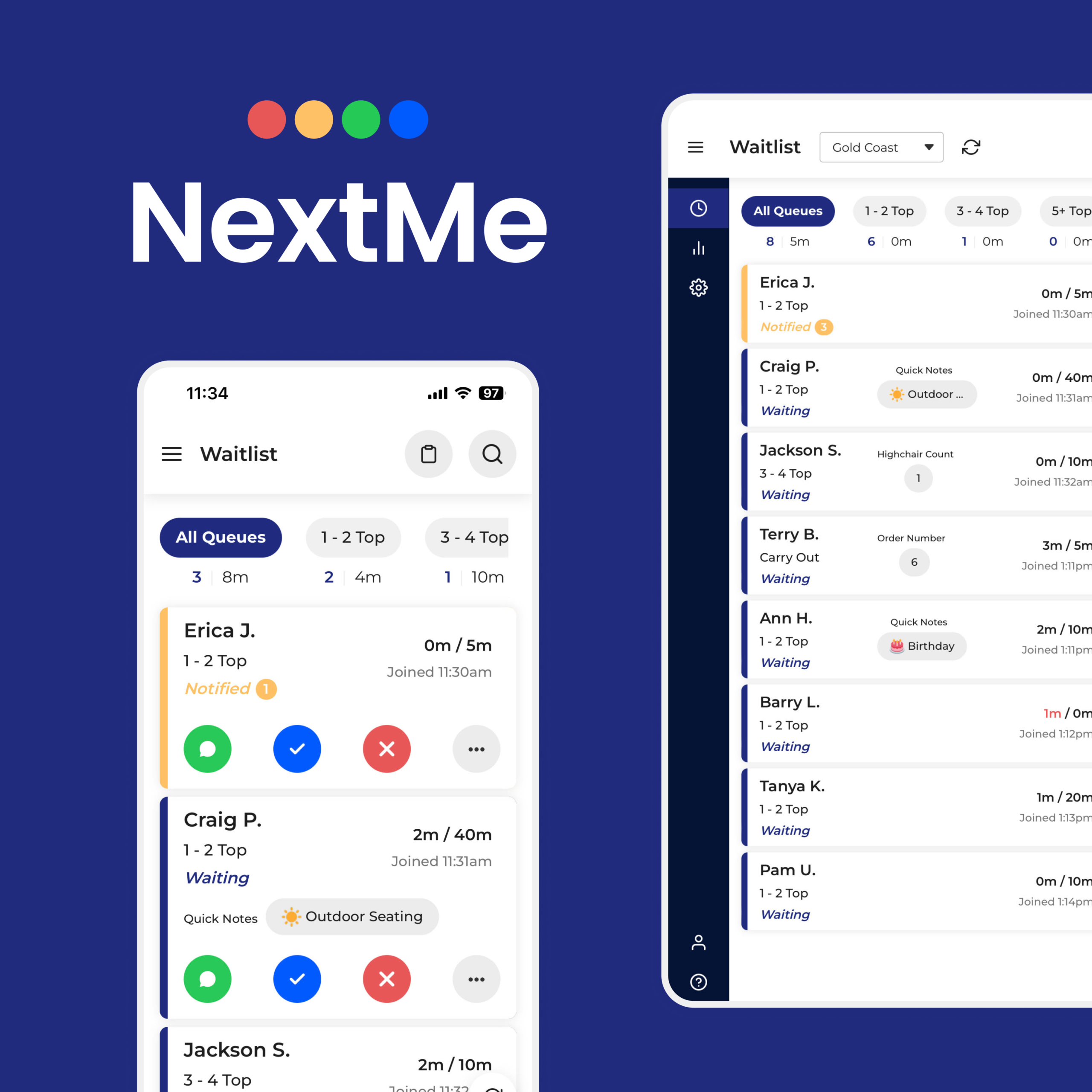
To set one up: create a free account with a tool like Waitwhile (free for 1 location, capped at a modest number of visits a month, with a small SMS allotment to test texting) or NextMe. Note that plans vary in what’s actually customer-facing: Waitwhile’s free tier lets customers join via link or QR code directly. NextMe’s free plan, by contrast, covers one location with basic waitlist management and a monthly text allowance, but customer-facing self check-in and QR code check-in are Starter-tier features on NextMe, starting around $49.99/month—so if letting customers scan a code and add themselves is the whole point for you, budget for that tier (or start with a tool whose free plan includes it).
Once set up, build a short check-in form asking for name and phone number, generate the QR code the tool provides, and print or display it at your entrance, front desk, or on a table tent. When a customer checks in, they’re added to your live queue and get a text when their table, appointment, or turn is ready.
As your volume grows, paid tiers add more monthly visits, multiple locations, and included SMS credits instead of pay-as-you-go texting—Waitwhile’s Starter plan starts around $31/month at its entry tier and scales up through higher visit-volume tiers, NextMe’s Starter plan starts around $49.99/month and adds self check-in plus customizable texts, and Waitlist Me’s paid plans start around $30/month with a monthly texting allowance bundled in.
This route takes less than an hour to set up and is the best choice if you expect regular volume and want reliable SMS notifications without manually texting each person.
Option 2: DIY With Google Forms, Sheets, and Group Texting
If your waitlist is occasional or you want a zero-cost option, Google Forms can stand in for a dedicated tool. Create a form with fields for name, phone number, and party size or service needed, then set responses to feed into a connected Google Sheet. Generate a QR code for the form link (Google Forms has a built-in QR option, or use any free QR generator) and post it where customers arrive.
As responses come in, the Sheet gives you a running, timestamped list you can sort and check off manually. For notifications, you’ll need a separate way to text people—options include your business phone’s regular messaging app for low volume, or a group-texting/SMS tool if you want to send updates in bulk.
The tradeoff: this method is free and flexible, but everything—texting customers, tracking wait times, removing no-shows—is manual. It works well for small, low-volume operations (a weekend pop-up, a single-location shop) but becomes tedious once you’re regularly juggling more than a handful of people at once.
Tips and Common Mistakes
Test the QR code yourself on a phone before putting it in front of customers—broken links or forms that don’t load on mobile are the most common failure point.
Don’t skip collecting a phone number, even for a walk-up form. Without it, you’re stuck calling out names, which defeats the point of a waitlist system.
Check whether self-service QR check-in is included on the specific plan you’re signing up for, not just the tool’s homepage. NextMe’s free plan handles waitlist management but requires an upgrade to its paid Starter plan before customers can check themselves in via QR code—so confirm before you print signage.
Watch your monthly visit limits on free plans. If you’re consistently near a free tier’s cap, it’s usually cheaper to upgrade than to accidentally lock customers out mid-month.
Keep the check-in form short—name and phone number are enough to start. Every extra field you add increases the odds someone abandons it before finishing.
If you use the DIY Sheets method, assign one person to “own” the list during busy periods so two staff members aren’t texting the same customer or losing track of who’s next.
Explore more: More small business tech guides.
customer waitlist without an app FAQs
Do customers need to create an account to join a no-app waitlist?
No. With tools like Waitwhile, Waitlist Me, or a Google Form, customers just fill in their name and phone number on a web page—no account, login, or app download required. NextMe offers the same self-service check-in, but only on its paid Starter plan and above; on its free plan, staff add customers to the list manually.
Is there a completely free way to run a customer waitlist?
Yes. Google Forms plus Google Sheets costs nothing, though you’ll text customers manually. Dedicated tools like Waitwhile and NextMe also offer free plans, but they’re limited—typically one location, a capped number of monthly visits, and in NextMe’s case, self check-in and QR check-in aren’t included until you upgrade to its Starter plan.
How do customers get notified when it’s their turn without an app?
Through SMS text messages sent to the phone number they provided at check-in—either automated through a waitlist tool or sent manually if you’re using a DIY spreadsheet method.
Build It With GTStudios
Need help with your website, app, or small-business tech? GTStudios builds web, apps, and software for small businesses. See how GTStudios can help.
Want dev news in your inbox? Subscribe to the free newsletter.
Images: Waitwhile.