
If your team is still passing the social media login or the shared vendor account around in a Slack DM or a spreadsheet, you’re one departing employee or one phished laptop away from a real problem. Small businesses run on shared accounts — company email aliases, ad platforms, hosting dashboards, banking portals — and none of the built-in tools in your browser were designed to manage who has access to what once more than one or two people are involved.
Table of Contents
A dedicated business password manager fixes this by letting you store shared credentials in permission-controlled vaults, revoke access instantly when someone leaves, and see who used what and when. This guide walks through what actually matters for shared-account use cases, compares the leading options on price and sharing controls, and gives you a straightforward setup checklist.
Quick Answer
For most small teams with shared logins, Bitwarden Teams and 1Password Business are the top picks: Bitwarden for the best value and open-source transparency, 1Password for the smoothest setup and polish. NordPass Business is a solid, cheaper alternative, and Keeper Business is worth a look if you want the most granular permission and audit controls.
What to Look for in a Shared-Account Password Manager
Not every password manager is built for teams — some are just single-user vaults with a family plan bolted on. For shared business accounts, prioritize a few specific capabilities. First, shared vaults, folders, or ‘collections’ that let you group credentials by department or client and assign access without every member seeing every password. Second, granular permissions — the ability to let someone use a password to auto-fill a login without ever revealing the actual characters, which matters for shared accounts like a company Twitter/X or ad account that a contractor might need temporary access to.
Third, fast offboarding. When someone leaves, you need to revoke their access to every shared vault in one action, not hunt through individual shares. Look for tools that support ‘transfer on offboarding,’ where an outgoing employee’s items move to an admin automatically. Fourth, an activity or audit log so you can see who accessed or changed a shared credential and when — useful for compliance and for catching problems early. Finally, check for single sign-on (SSO) support if you already use Google Workspace or Microsoft 365, since it simplifies onboarding new hires into the vault.
Top Password Managers for Small Business Teams, Compared
1Password Business runs about $8.99 per user per month (billed annually) and is widely regarded as the easiest to roll out to a non-technical team. It offers role-based vault sharing, unlimited shared vaults, detailed permission controls, and — a nice touch for small businesses — a free 1Password Families account bundled in for every business seat, so employees can also secure their personal logins.
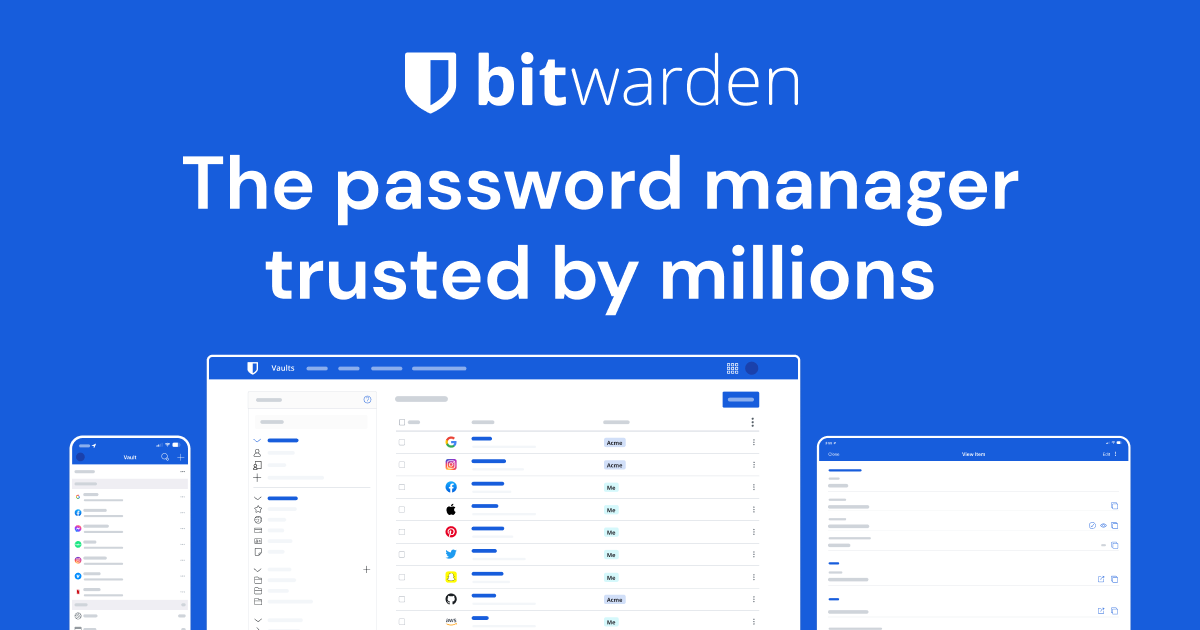
Bitwarden Teams costs around $4 per user per month, with an Enterprise tier around $6 per user per month that adds SSO and custom roles. Bitwarden organizes shared credentials into ‘collections’ with unlimited sharing and granular per-group access, and its open-source codebase (independently audited) appeals to teams that want transparency into how their vault is secured. It’s consistently the cheapest full-featured option in this category.
NordPass Business is priced lower still, generally in the $3 to $4 per user per month range depending on tier, with a Teams tier aimed at very small groups (around 10 seats) below that. It supports group-based and folder-based credential sharing, and its Owner role gives a full overview of who has access to every shared item — useful if you want a single dashboard view of shared-account exposure.
Keeper Business tiers run roughly from $2 to $6 per user per month across Starter, Business, and Enterprise plans. Keeper is often cited as offering the most granular permission, policy, and audit controls of the group, plus shared team folders and delegated administration, making it a good fit once you have more complex departmental structures or compliance requirements to satisfy.
How to Set Up Shared Vaults the Right Way
Start by mapping your shared accounts before you touch any software — list every login more than one person uses: social media, domain registrar, hosting, payment processor, ad accounts, shared inboxes. Then create separate vaults or collections by function (Marketing, Finance, IT/Hosting) rather than one giant shared vault everyone can see. Assign the minimum access each role actually needs — most tools let you grant ‘can view/autofill’ without ‘can edit/share,’ which limits accidental changes.
Enable two-factor authentication on the password manager account itself, since that master account is now the single point of failure protecting everything else. Turn on SSO if you’re on Google Workspace or Microsoft 365 so new hires are added and removed through your existing identity system instead of a separate invite process. Finally, build offboarding into your actual exit checklist — revoking password manager access should be a required step, not an afterthought, the same day someone’s employment ends.
Tips and Common Mistakes
Don’t let ‘the founder has the master password to everything’ become your security plan — if that person is unreachable, the whole business loses access. Set up at least one other admin or an account-recovery process. Avoid sharing raw passwords over email or chat even temporarily during migration; import directly from your current spreadsheet or browser using the tool’s built-in import feature instead. Watch out for reused passwords on shared accounts specifically — because multiple people touch them, they’re the accounts most likely to get weak, reused credentials, so use the manager’s built-in generator when you first migrate each one. And review vault membership periodically; contractors and former employees quietly retaining ‘can view’ access to a shared account is one of the most common gaps small teams have.
Explore more: More small business tech guides.
Password manager for small business teams FAQs
What’s the difference between a personal and a business password manager?
Business plans add shared vaults or collections with per-person permissions, an admin console to manage the whole team, activity/audit logs, and offboarding controls — features that individual or family plans don’t include.
How much does a password manager for a small business team cost?
Most business plans fall between roughly $2 and $9 per user per month when billed annually, with Bitwarden and Keeper on the lower end and 1Password on the higher end for its added polish and support.
Can employees see the actual password for a shared account?
With most business password managers, no — admins can grant ‘autofill’ or ‘use’ access that lets someone log in without ever displaying the plaintext password, which is ideal for shared accounts you don’t want widely exposed.
Build It With GTStudios
Need help with your website, app, or small-business tech? GTStudios builds web, apps, and software for small businesses. See how GTStudios can help.
Images: 1Password.