
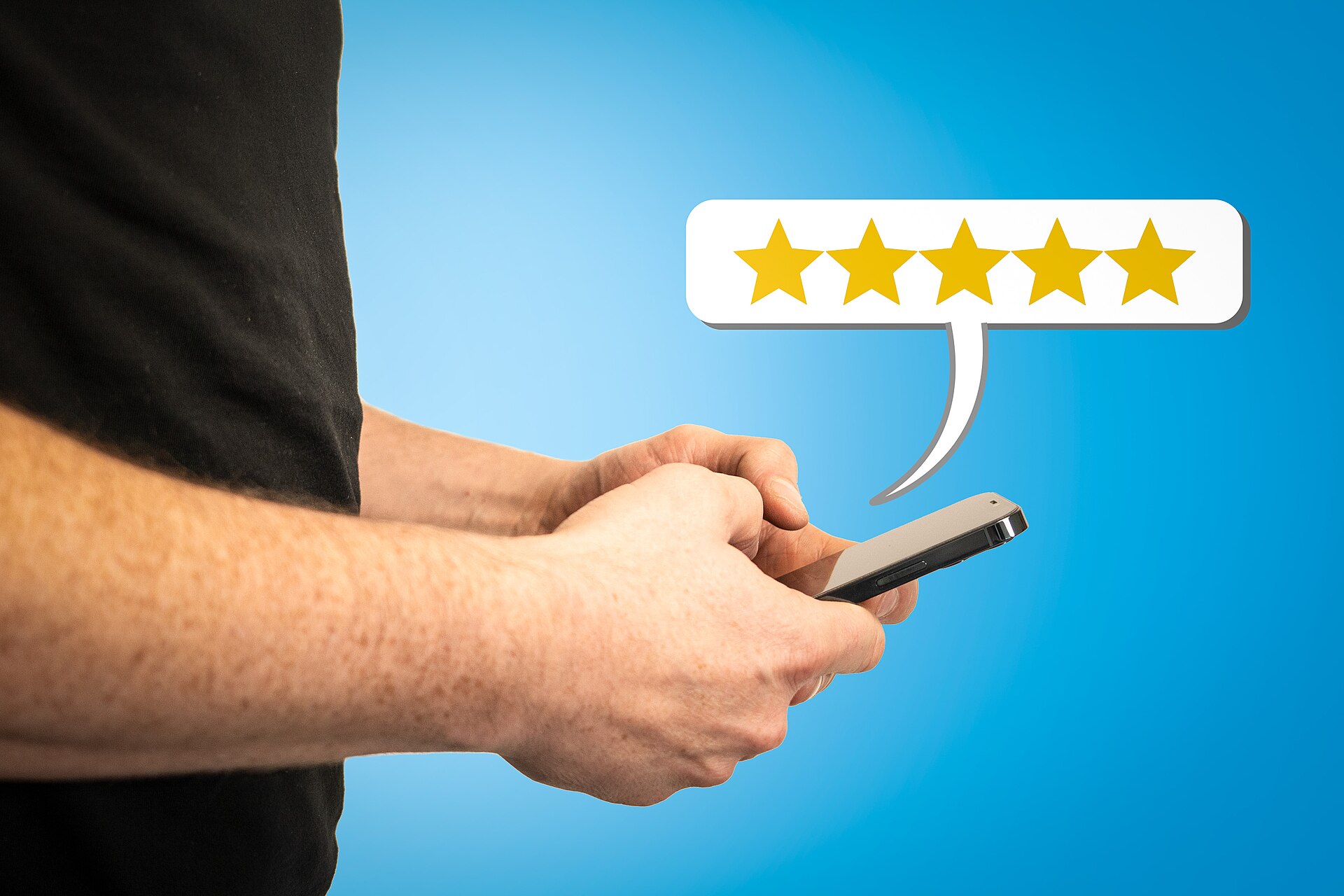
A steady stream of Google reviews does more for a small business than almost any other free marketing effort — it builds trust with people who’ve never heard of you and helps your Google Business Profile rank higher in local search and Maps results. The problem is most business owners either forget to ask, ask the wrong way, or unknowingly break Google’s rules trying to speed things up.
Table of Contents
This guide covers exactly how to set up your review link, the outreach methods that actually work, how to respond to what comes in, and which shortcuts to avoid because they can get your profile restricted.

Quick Answer
Get more Google reviews by creating your free review link from your Google Business Profile, then asking every customer for a review at the moment they’re happiest — right after a purchase, project completion, or positive interaction — via text, email, or a printed QR code. Never pay for reviews or only ask customers you expect to leave a positive one; both violate Google’s policies and can get your profile restricted.
Step 1: Create Your Google Review Link
You need a direct link that drops customers straight onto your review form instead of making them search for your business and hunt for the ‘Write a review’ button. To get it, sign in to the Google account that manages your Business Profile, search for your business name on Google, and click ‘Ask for reviews’ in the business panel on the right. Google will generate a short link (formatted like g.page/r/xxxxxxx/review) that you can copy and share directly via WhatsApp, Facebook, or email.
You can also generate the link — and a scannable QR code — from your Business Profile dashboard at business.google.com: go to Reviews, then ‘Get more reviews,’ and copy the link or download the QR code. Note that the QR code can only be generated from a computer browser, not the mobile app. Before sending it to anyone, test the link yourself on a phone to confirm it opens the star-rating screen and not just your general Maps listing.
Step 2: Ask at the Right Moment, the Right Way
Timing matters more than the tool you use to ask. Request a review as close as possible to a positive moment — right after checkout, when a service is completed, or after a customer thanks you directly — while the experience is still fresh. Waiting a week drops response rates fast.
Text and email are the highest-converting channels because customers can tap the link and leave a review in under a minute. A short, personal message works better than a template: thank them by name, mention what you did for them, and include the link. For in-person or retail businesses, a QR code on the receipt, at the counter, or in a follow-up thank-you card gives customers an easy path without you having to ask verbally every time.
Make it a habit, not a one-off campaign. Build the ask into your existing workflow — a line in your invoice email, a step in your checkout process, a follow-up text your team sends automatically — so it happens consistently instead of relying on someone remembering to do it.

Step 3: Respond to Every Review
Replying to reviews, positive and negative, signals to both customers and Google that the profile is actively managed, and it’s one of the factors Google points to for building trust with potential customers. Keep responses professional, specific, and brief — thank happy reviewers by name and reference what they mentioned; for negative reviews, acknowledge the issue, avoid getting defensive, and offer to resolve it offline.
If a review clearly violates Google’s policies — it’s spam, off-topic, contains hate speech, or is obviously fake — you can flag it for removal from the review itself or through your Business Profile, but only genuine policy violations get removed. A review just being negative isn’t grounds for removal.
Tips and Common Mistakes to Avoid
The biggest mistake is offering anything in exchange for a review — a discount, a free product, loyalty points, or even a charitable donation in the customer’s name. Google explicitly prohibits paying for reviews or incentivizing customers to write, revise, or remove one, and violations can get reviews wiped or your profile restricted.
The second most common mistake is review gating: only sending review requests to customers you expect to be happy, or filtering people through a private ‘How was your experience?’ survey and steering unhappy responses away from Google. This is also against Google’s rules — ask everyone, and let the reviews land where they land.
Other things to avoid: don’t set up review kiosks or stations that only display on your own wifi/devices in a way that filters sentiment, don’t ask employees or family members to post reviews for the business they work for, and don’t buy reviews from third-party services. These practices risk having reviews mass-removed or the profile suspended entirely, which is far more damaging than a slow trickle of organic reviews.
Explore more: more web development guides.
Google Reviews for small business FAQs
Is it legal or allowed to ask customers for a Google review?
Yes. Simply asking customers to leave a review — in person, by text, email, or with a QR code — is explicitly allowed by Google. What’s prohibited is offering an incentive for the review or only asking customers you expect to leave positive feedback.
Can I offer a discount for leaving a Google review?
No. Google’s policy prohibits offering money, discounts, free products, loyalty points, or any other incentive in exchange for a review, whether the review is positive, negative, or neutral. Doing so can get the review removed and your profile restricted.
How do I get my Google review link?
Sign in to the Google account tied to your Business Profile, search your business name on Google, and click ‘Ask for reviews’ in the business panel to get a shareable short link. You can also find it under Reviews > ‘Get more reviews’ at business.google.com, where you can also download a QR code.
Can I remove a negative Google review?
Only if it violates Google’s content policies, such as being spam, fake, off-topic, or containing hate speech or harassment. You can flag it for review directly from the listing. A review isn’t eligible for removal just because it’s negative or unfair.
Build It With GTStudios
Need help with your website, app, or small-business tech? GTStudios builds web, apps, and software for small businesses. See how GTStudios can help.
Photo: Zuko.io Images / CC BY 2.0, via Wikimedia Commons.