
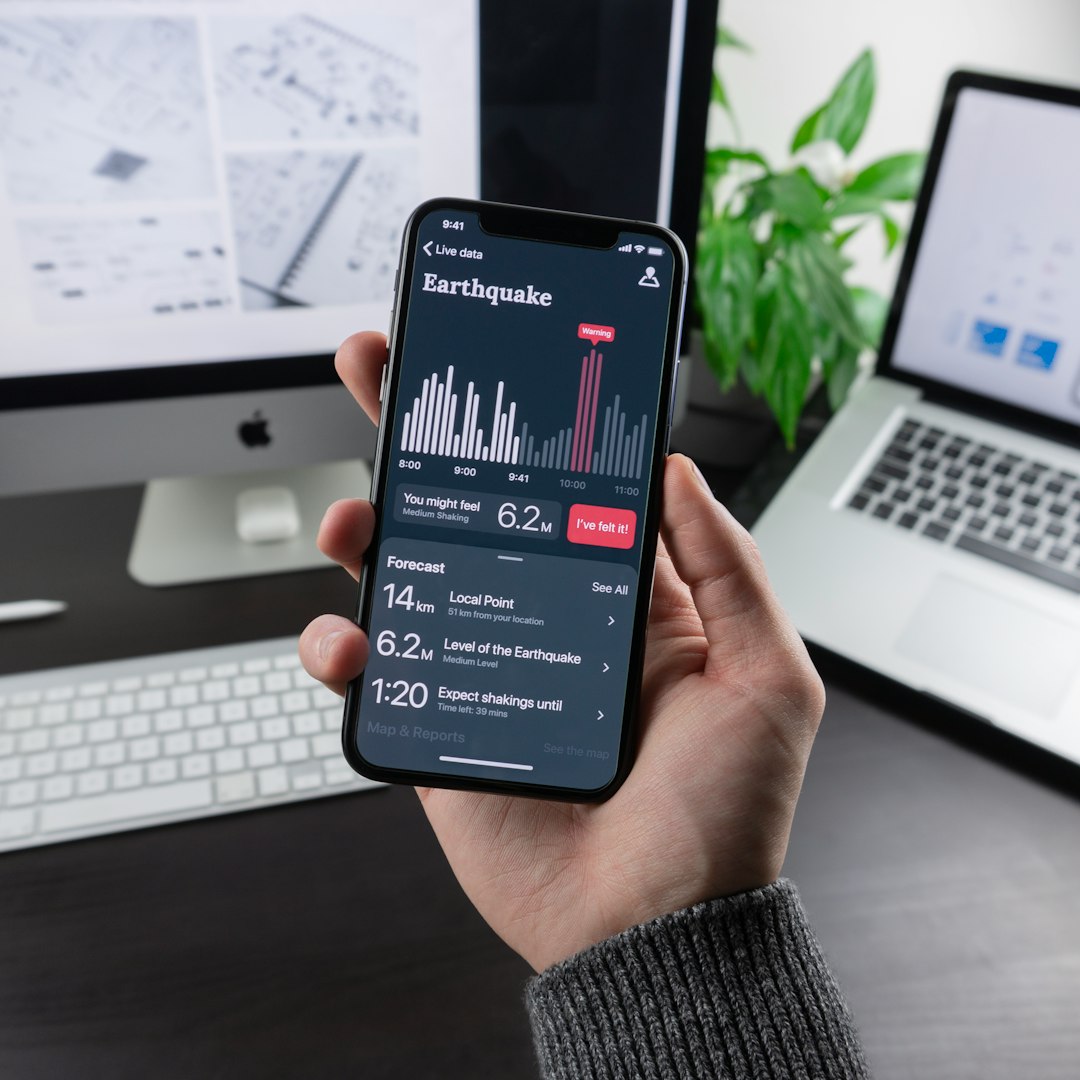
A physical time clock sounds like the obvious solution for tracking employee hours — until it breaks, runs out of supplies, or proves completely useless for the staff member working remotely or at a job site across town. The reality is that most small businesses already have the tools for accurate timekeeping in their pockets: smartphones, tablets, and a browser.
Table of Contents
This guide covers the four main methods for tracking hours digitally, six tools worth considering with verified pricing, and the common mistakes that lead to inaccurate timesheets even when good software is in place.
Quick Answer
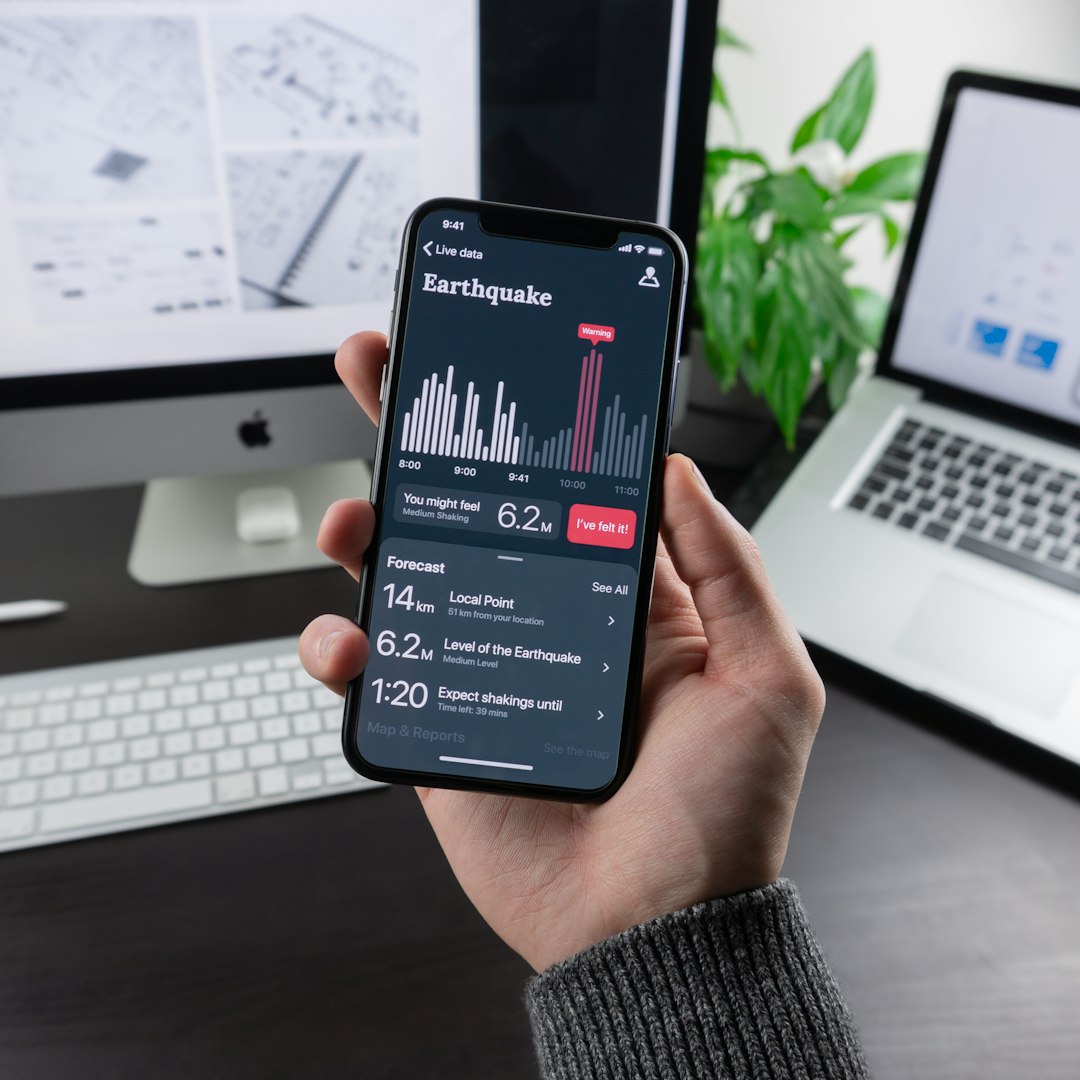
Install a mobile time-tracking app and have employees clock in and out from their phones or a shared tablet. The app logs timestamps, attaches a GPS location if needed, and builds a digital timesheet automatically — no punch card or hardware terminal required. Most tools sync directly to payroll software, so approved hours flow straight to payroll without manual re-entry.
The Four Main Methods
Mobile app clock-in is the most common approach. Employees download an app on their iOS or Android device, tap to clock in at the start of a shift, and tap again when they leave. Managers see a live dashboard showing who is currently on the clock, and the app flags missed punches or unusual patterns automatically. This works equally well for office teams, remote workers, and mobile crews.
GPS and geofencing take mobile clock-in a step further. You draw a virtual boundary around a job site, store, or office in the app’s settings. When an employee’s phone crosses into that zone, the app can prompt them to clock in — or do it automatically — and block clock-ins that originate from outside the boundary. GPS also stamps each punch with a map location, giving you a verifiable record of where the employee actually was. Tools like Connecteam, Deputy, and QuickBooks Time all support geofencing.
Shared tablet kiosk mode works well for businesses with a fixed location and staff who don’t carry personal smartphones on the job — think restaurants, salons, or small retail shops. You mount a tablet near the entrance, open the kiosk view in the app, and employees punch in using a PIN or by taking a quick selfie. Photo verification is particularly effective at preventing buddy punching, where one employee clocks in on behalf of a coworker. Homebase and QuickBooks Time both include a dedicated kiosk mode.
Browser-based timesheets are the simplest option for office environments. Employees log into a web portal at the start of the day, start a timer or fill in their hours, and submit at the end of the week for manager approval. This fits salaried or hybrid workers who track time by project rather than shift. Clockify built its reputation on this model, and Hubstaff pairs it with GPS options for teams that need both.
Six Tools Worth Considering
Connecteam is a strong all-rounder for field and mobile teams. It includes GPS location stamps, geofencing, NFC tap clock-ins, automated timesheets, and a kiosk mode. A free plan is available for small teams; paid plans start at $29 per month for up to 30 users.
Homebase is a natural fit for shift-based businesses — restaurants, retail, and service shops. It combines scheduling, time tracking, and team messaging in one dashboard. The free plan covers one location with up to 10 employees. Paid plans start at $24 per location per month (billed annually), with an integrated payroll add-on available for an additional monthly fee.
QuickBooks Time (formerly TSheets) is the logical choice if your business already runs payroll through QuickBooks. It offers GPS tracking, geofencing, a kiosk mode with photo verification, and one-click timesheet export to QuickBooks Payroll. Pricing starts at $20 per month as a base fee, plus $8 per user per month.
Deputy focuses on retail and hospitality. It supports mobile and web clock-in, a kiosk mode with PIN and facial recognition, GPS location stamps, and shift scheduling, starting at $5 per user per month. When I Work is a similar option in the same category, with plans typically ranging from $3 to $8 per user per month depending on the features included.
Hubstaff suits remote teams where activity monitoring matters alongside time tracking. Beyond timestamps, it can log which apps and URLs employees use during a shift and take optional screenshots — a feature some teams find valuable for accountability. Plans start at $4.99 per user per month.
Clockify has historically been the go-to free option, though in April 2026 it ended its unlimited free plan and capped the free tier at five users. Paid plans start under $5 per user per month, and it remains a solid choice for project-based time tracking in small teams where shift enforcement is less of a concern.
Tips and Common Mistakes
Set a clear clock-in policy before rolling out any software. Define whether employees clock in when they arrive at the building, reach their workstation, or begin their first task. Ambiguity here is the most common source of timesheet disputes, and no software can fix it automatically.
Enable manager notifications for missed punches. Most of these apps can alert you when an employee forgets to clock out or doesn’t clock in during their scheduled window. Catching those gaps the same day is far easier than reconstructing them at the end of a pay period.
Don’t skip the payroll integration setup. Every tool listed here supports at least one major payroll platform — QuickBooks, Gusto, ADP, or Paychex. Connecting them typically takes under an hour and eliminates the manual re-entry errors that cause underpayments and overpayments.
If you use GPS or geofencing, test the setup at the actual job site before going live. Building materials, basements, and dense structures can affect location accuracy. A quick on-site test lets you adjust the geofence radius before employees start having legitimate clock-ins rejected.
Train employees on the exact steps — app download, first login, and how to flag a missed punch — before the first pay period starts. Staff who don’t know how to correct an error will often leave it, and then managers face a stack of timesheet exceptions on payday.
Explore more: Small Business Tech guides.
employee time tracking without physical time clock FAQs
Is it legal to use GPS tracking in a time clock app?
In most US states, employers can use GPS tracking during working hours, especially when staff are on company time at a job site or in a company vehicle. Requirements vary by state, so best practice is to notify employees in writing that GPS is active during shifts and collect a signed acknowledgment. Limiting GPS to scheduled work hours — not personal time — keeps the policy on solid legal and ethical ground.
What is the best free time tracking app for small businesses?
Homebase is widely used for shift-based businesses — its free plan covers one location and up to 10 employees with scheduling and time tracking included. For project-based teams, Clockify offers a free tier capped at five users as of 2026. Connecteam also has a free plan for small teams that includes GPS and kiosk features.
How do I prevent buddy punching without a fingerprint reader?
The most practical alternatives are kiosk photo verification (the app snaps a selfie at clock-in that managers can review) and PIN-based kiosk mode tied to individual employee accounts. GPS geofencing also deters it indirectly — a clock-in that logs the right phone location is much harder to fake on someone else’s behalf. Connecteam, Homebase, and QuickBooks Time all include at least one of these features.
Build It With GTStudios
Need help shipping your app, game, or small-business tech? GTStudios builds web, apps, and games. See how GTStudios can help.
Photo by Balázs Kétyi on Unsplash.