
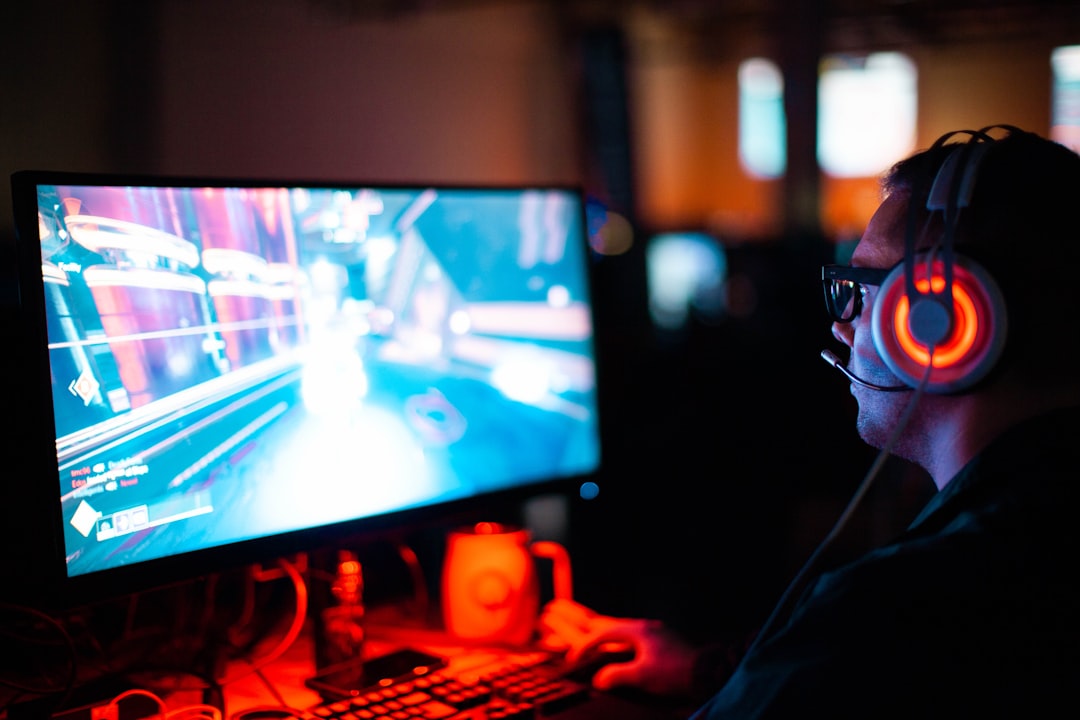
Sound makes or breaks player immersion — a satisfying sword clang or a perfectly-timed UI click can elevate your game from tech demo to shipped title. The good news: you don’t need a studio budget or a hired sound designer to get there.
Table of Contents
This guide covers the exact free tools, libraries, and recording techniques indie developers use to build a complete SFX library from scratch. Whether you’re making a retro platformer or a moody puzzle game, everything here costs exactly nothing.
Quick Answer
To create free sound effects for your indie game, use a browser-based generator like jsfxr (sfxr.me) or ChipTone for retro and synthetic sounds, download ready-made packs from Kenney.nl (all CC0, no attribution needed) and Freesound.org (over 725,000 community sounds), then edit and trim clips using Audacity — the free, open-source audio editor available for Windows, Mac, and Linux.
Step 1 — Generate Your Own SFX in the Browser
For arcade and retro-style sounds, jsfxr (sfxr.me) is a free online 8-bit sound generator that requires no account. Hit a preset — Coin, Laser, Explosion, Jump, Hit — and it instantly produces a randomized variation. You can then adjust the envelope, pitch, and vibrato with sliders and export the result as a WAV file. You own the output with full commercial rights, no license strings attached.
ChipTone (sfbgames.itch.io/chiptone) gives you more hands-on control. It runs in the browser and as a downloadable app for Windows and macOS, lets you sculpt waveforms and layer filters, and all sounds you export are CC0 (public domain) — free for any commercial use with no attribution required. It’s ideal for power-up chimes, hit feedback, and UI sounds.
Bfxr (bfxr.net) is the original classic in this space. It adds waveforms like triangle, breaker, and pink noise, and there is now a JavaScript rework called bfxr2 that runs natively in modern browsers. All three generators are fast for placeholder sound during development and polished enough for a shipped game.
Step 2 — Download Ready-Made Free Packs
Kenney.nl is the single best starting point for free game audio. Kenney publishes packs including Impact Sounds (130 assets), Interface Sounds (100 assets), RPG Audio (50 assets), Digital Audio (60 assets), and UI Audio (50 assets) — all under Creative Commons Zero (CC0). That means no attribution, no restrictions, no account required. Download and drop the files directly into Unity, Godot, or any engine.
Freesound.org hosts over 725,000 community-recorded sounds covering everything from weapon hits to forest ambience. Search by tag — try ‘footstep gravel’ or ‘sword slash’ — and filter by CC0 license to get sounds you can use without crediting the author. A free account is required to download. Sounds labeled CC-BY require a credit in your game’s credits screen, which is a small ask but easy to overlook at crunch time.
Other reliable free sources: Open Game Art (opengameart.org) has game-specific SFX under CC0 and CC-BY; Mixkit (mixkit.co) offers polished UI and menu sounds free for commercial use; itch.io has countless free and pay-what-you-want sound packs from indie creators. Each year around GDC, Sonniss (sonniss.com/gameaudiogdc) releases a large bundle of professional field recordings and SFX licensed for commercial game use — worth bookmarking.
Step 3 — Edit and Polish With Audacity
Audacity (version 3.7.8, audacityteam.org) is the standard free audio editor for Windows, Mac, and Linux. For game audio work you’ll mostly use three operations: trim silence off the front and back of a clip so it triggers crisply in-engine; normalize volume so your SFX don’t spike louder than your music; and apply a short fade-out to prevent clicks at the end of a one-shot effect. Export as OGG Vorbis rather than MP3 — most game engines prefer OGG because it loops cleanly without the small gap MP3 encoding introduces at the loop point.
You can also layer sounds: open two tracks in Audacity, place a thud recording on one and a bass rumble from Freesound on the other, and export the combined mix as a single file. This is how professional sound designers build ‘heavy’ impact sounds from ordinary recordings — the same technique works in Audacity at zero cost.
Audacity’s Macro feature (under Tools > Macros) lets you batch-process multiple files at once, useful when you have dozens of footstep variants that all need the same noise reduction and normalization pass applied.
Step 4 — Record Your Own Foley
A smartphone microphone is sufficient for many game sounds. Hard surfaces, kitchen objects, clothing, and water all produce usable raw audio. Slowing a recording down in Audacity (Effect > Pitch and Speed > Change Tempo) can turn a cloth tear into a dramatic portal-open sound; pitch-shifting a staple gun click can become a convincing sci-fi weapon. These recordings are yours outright — no license to worry about.
Record in a quiet room with soft furnishings to absorb reflections, then use Audacity’s Noise Reduction effect (Effect > Noise Reduction) to clean up room tone: sample two seconds of silence, run the reduction, and most hiss disappears. A closet stuffed with clothes works as a serviceable improvised recording booth.
Tips and Common Mistakes
Always check the license before using a sound, even on sites that advertise ‘free.’ Look for CC0 (public domain) or a license that explicitly allows commercial use. ‘Free for personal use’ means you cannot ship your game with it. CC-BY requires a credit in your credits screen — easy to miss and legally significant.
Match your SFX style to your game’s visual tone. Pixel-art games usually benefit from lo-fi, 8-bit outputs from jsfxr or ChipTone. Realistic 3D games need recorded or layered sounds from Freesound. Mixing mismatched audio styles — 8-bit blips in a photorealistic FPS — breaks immersion immediately.
Don’t generate one of everything upfront. Start with the sounds your player will hear most: footsteps, primary weapon or action, jump, land, UI confirm, and UI cancel. Nail those six before building out the rest of your library.
Export game audio as OGG Vorbis, not MP3. OGG is natively supported in Unity, Godot, and most other engines, loops without glitches, and produces smaller file sizes than WAV for the same quality.
Explore more: More Game Development Guides.
free indie game sound effects FAQs
Can I use Freesound sounds in a commercial indie game?
Yes, but you must check each sound’s individual license. Filter search results by CC0 for no-strings-attached use, or CC-BY if you’re willing to add a credit in your game. Avoid sounds labeled CC-BY-NC — those are non-commercial only and cannot be used in a game you sell.
What is the best free tool for retro 8-bit sound effects?
jsfxr (sfxr.me) and ChipTone are the most widely used. Both run in the browser, require no sign-up, and export WAV files you can use commercially. ChipTone gives you more manual control over the waveform and filter chain; jsfxr is faster for rapid randomization.
Do I need a good microphone to record my own sound effects?
No — a smartphone microphone works for many game sounds, especially after processing in Audacity with noise reduction and normalization. Record in a quiet room with soft furnishings to minimize background noise and reflections.
Build It With GTStudios
Need help shipping your app, game, or small-business tech? GTStudios builds web, apps, and games. See how GTStudios can help.
Photo by Sean Do on Unsplash.